Phase 6 - Authentication and DNS
1. Configure Google identity provider
Open Amazon Cognito Console in region
us-east-1.Open your user pool and go to
Social and external providers.Click
Add identity provider.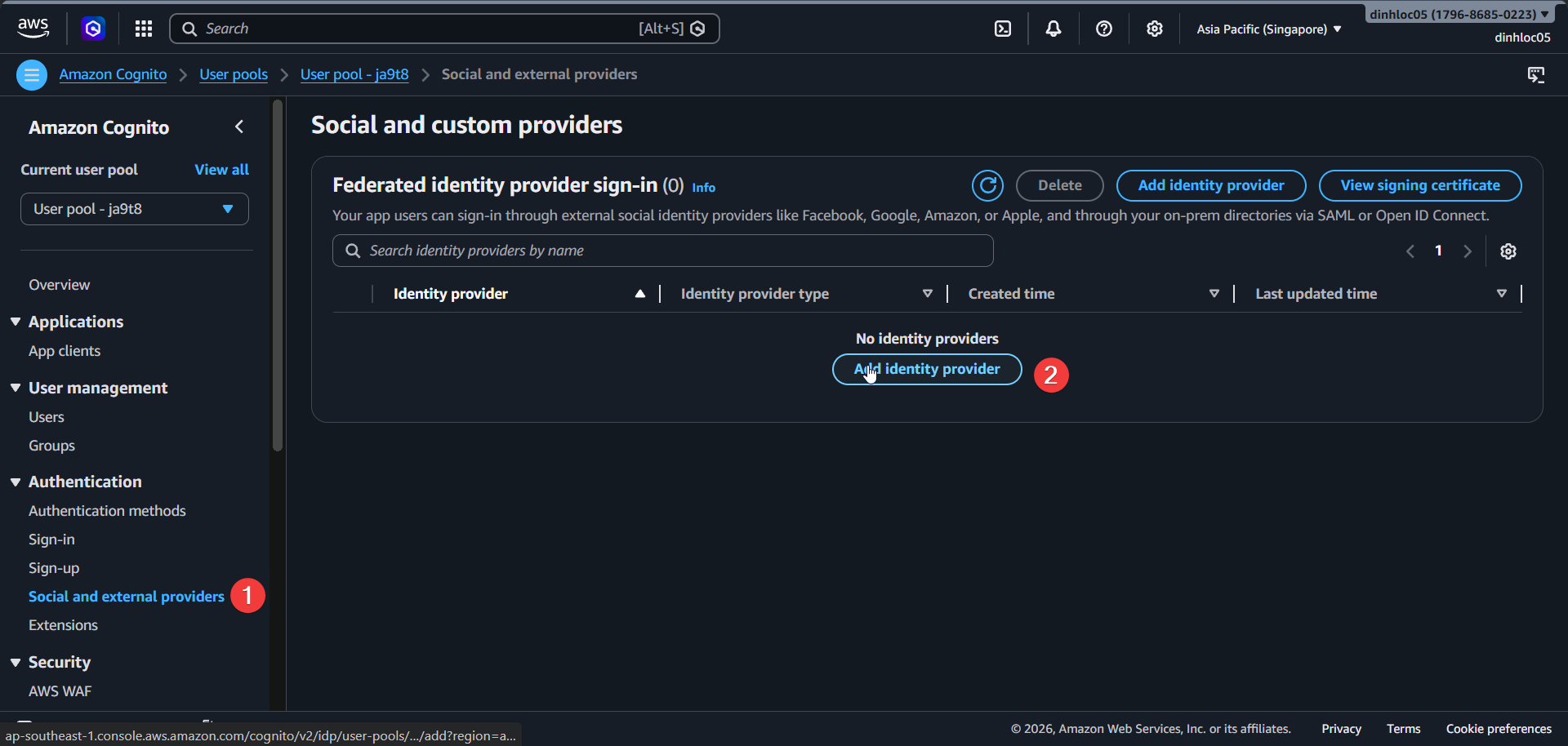
Select provider type
Google.Enter your Google OAuth
Client IDandClient secretfrom Google Cloud Console.Set authorized scopes:
openid email profile.Save changes.
Verify provider
Googleis present.Verify mappings include these key fields:
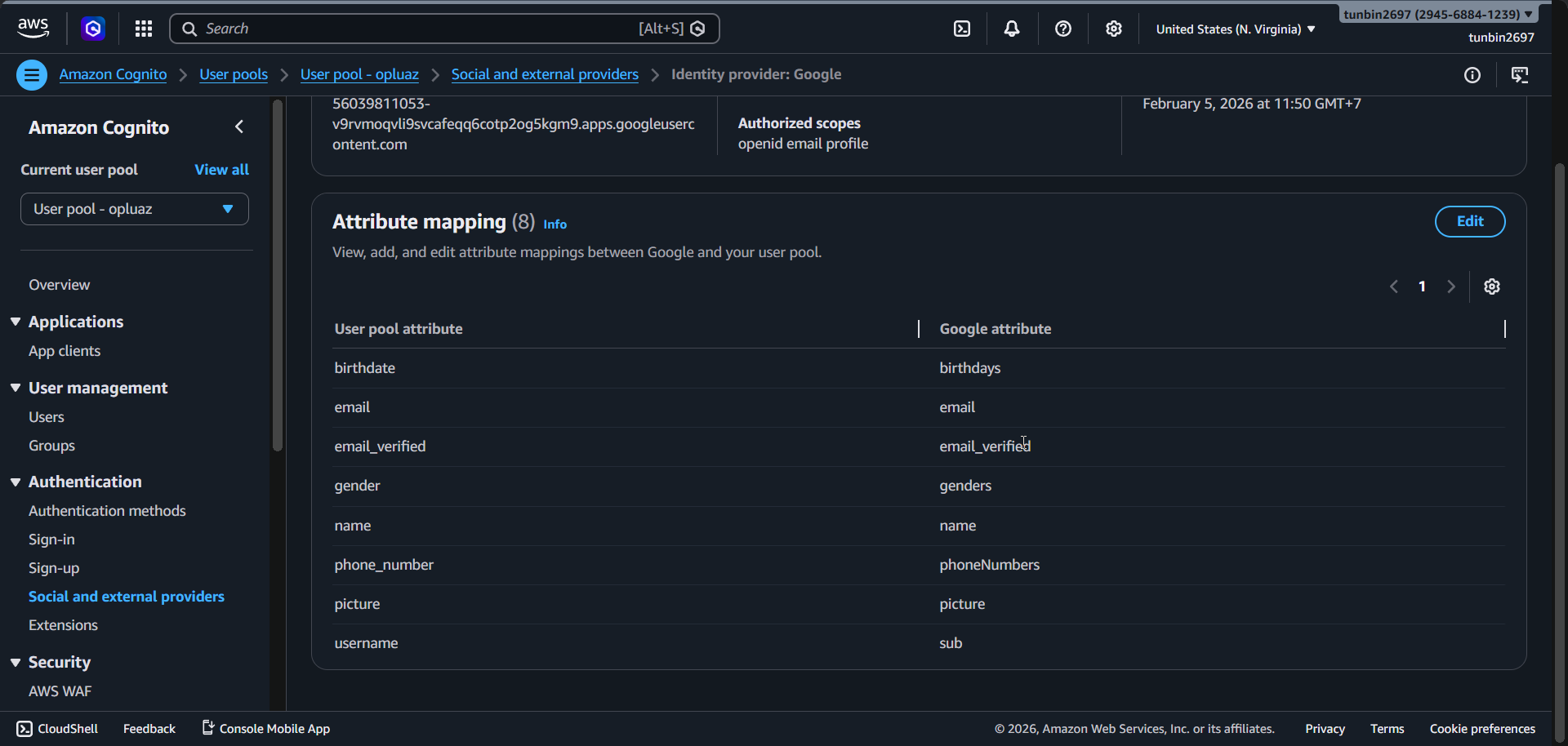
email -> emailemail_verified -> email_verifiedname -> namepicture -> pictureusername -> sub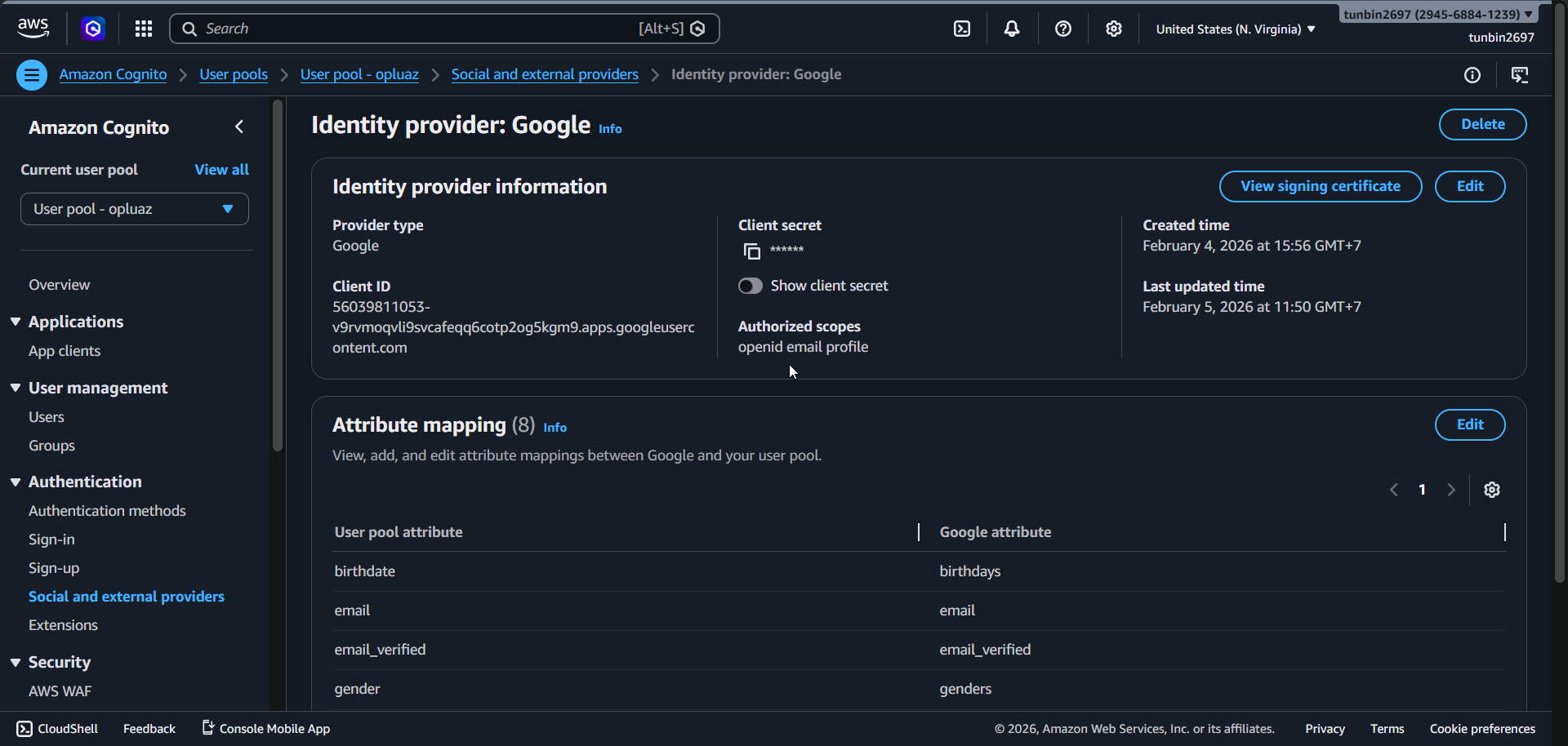
2. Create Cognito user pool and app client
Open Amazon Cognito Console in region
us-east-1.Open
User pools.Click
Create user pool.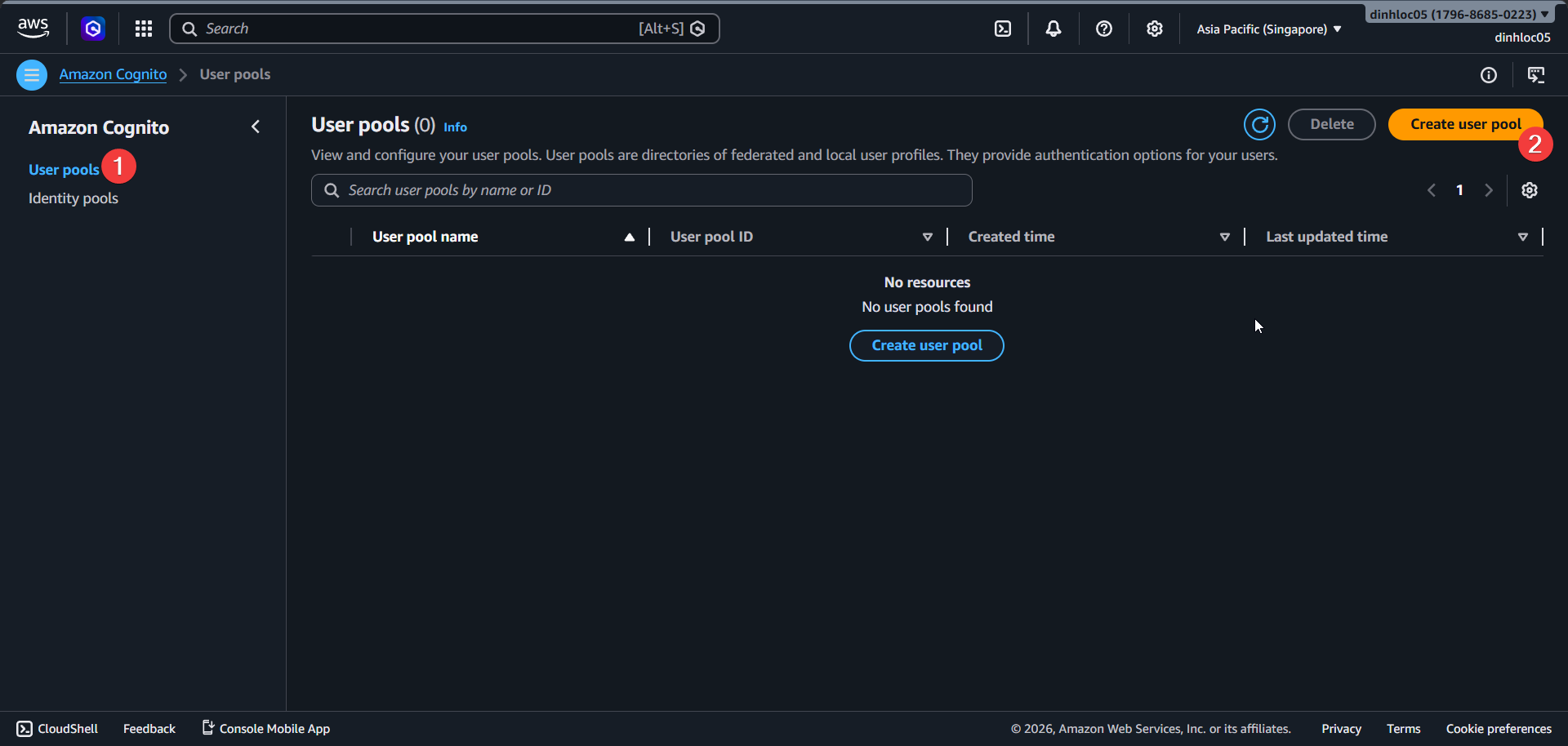
Select application type
Single-page application (SPA).Enter application name:
myfit cognito app client.In sign-in identifiers, select
Email.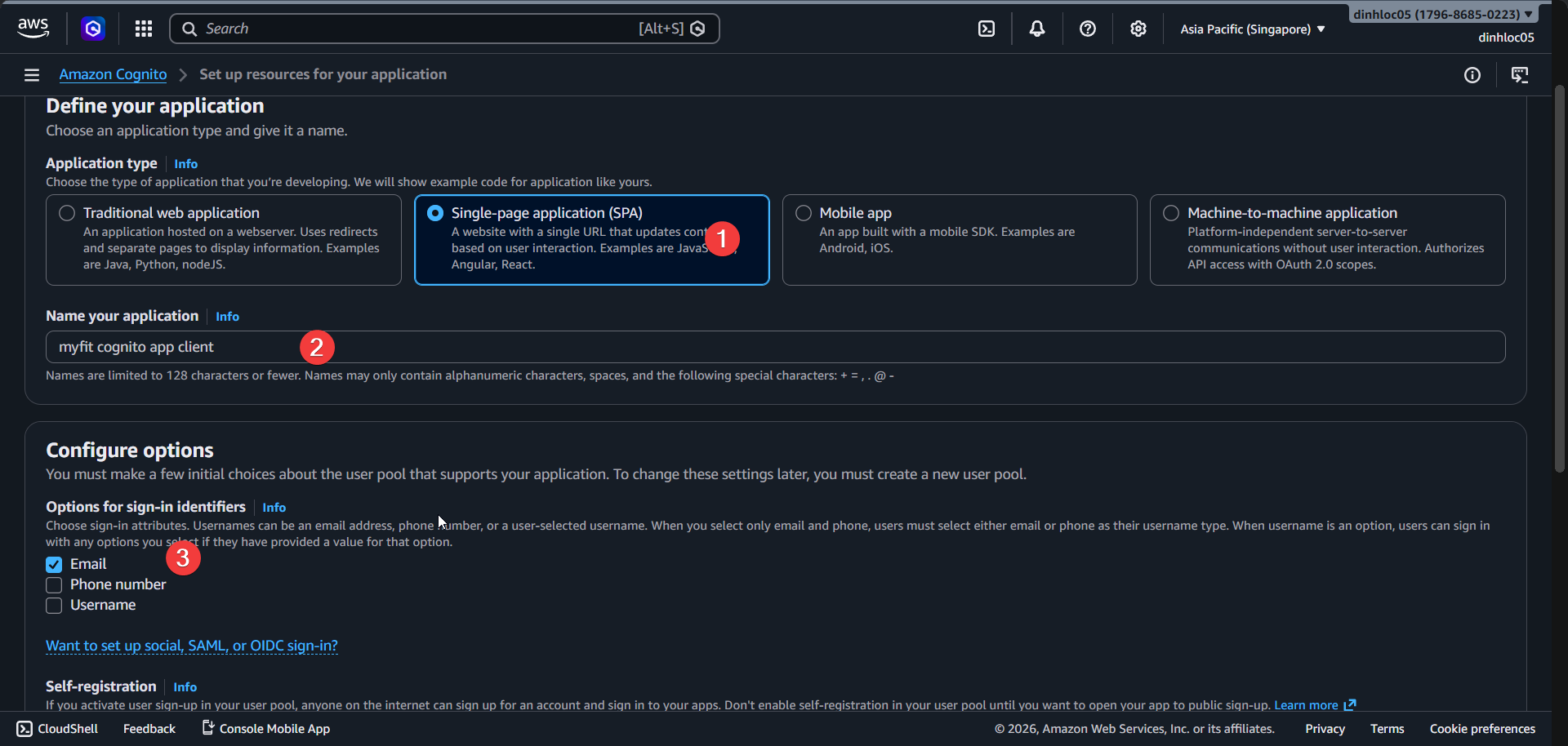
Keep
Enable self-registrationselected.Set required attributes to include
email.Enter return URL:
https://myfit.click.Click
Create user directory.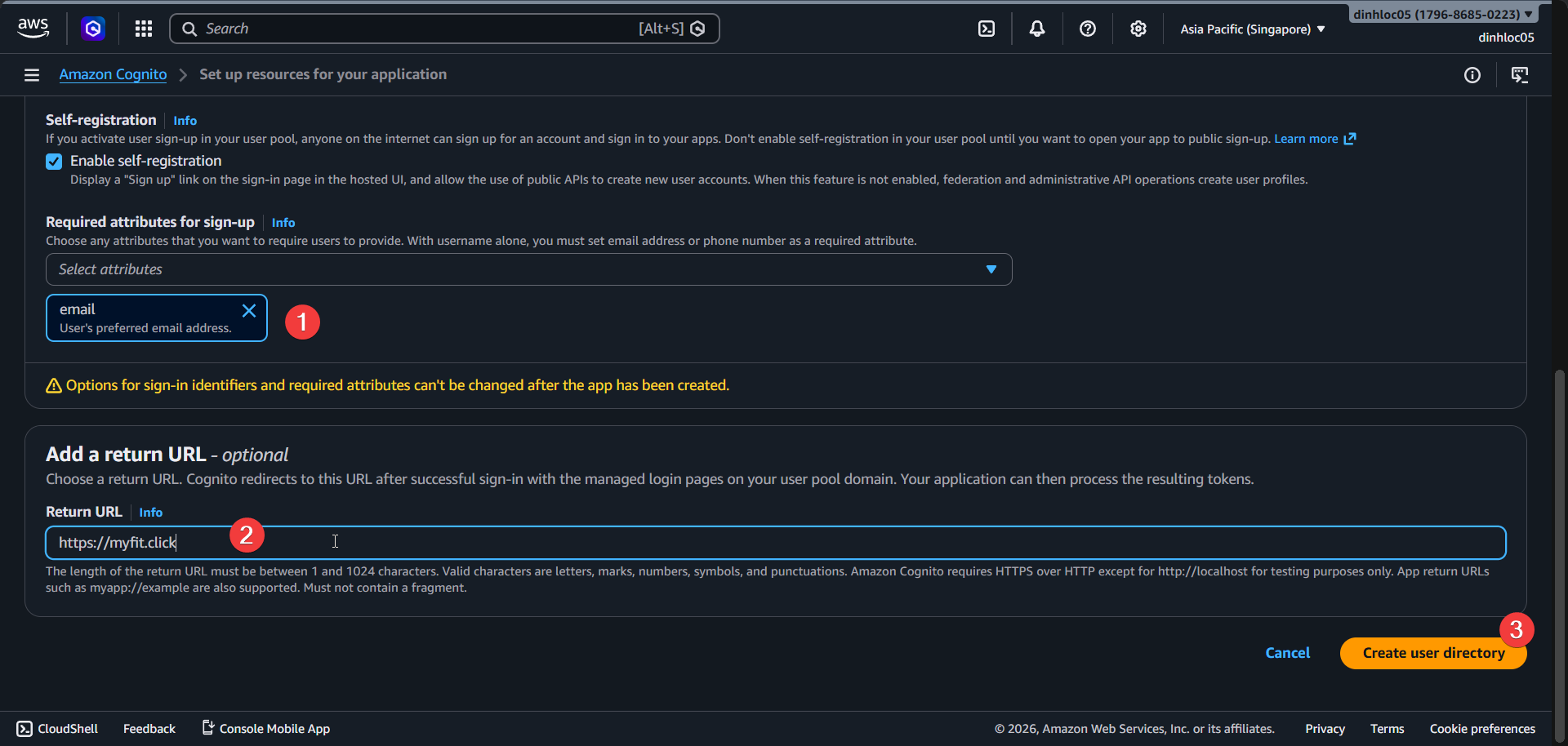
3. Configure managed login pages
Open your user pool, then open
App clients.Select app client
Fitme-cognito-web-auth-service.Open
Edit managed login pages configuration.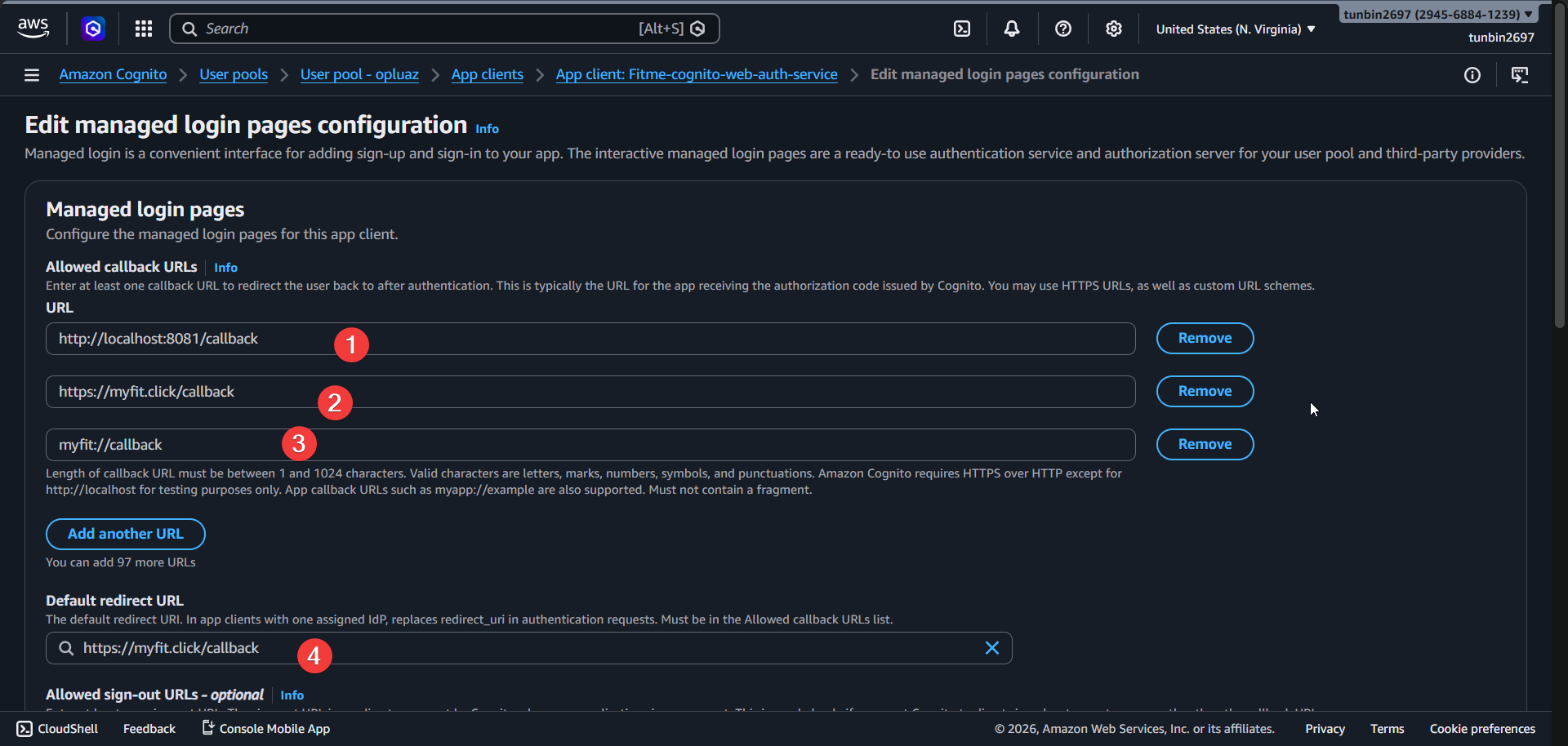
Set
Allowed callback URLs:http://localhost:8081/callbackhttps://myfit.click/callbackmyfit://callback
Set
Default redirect URL:https://myfit.click/callback.Set
Allowed sign-out URLs:http://localhost:8081/logouthttps://myfit.click/logoutmyfit://logout
In identity providers, select
Google.In OAuth 2.0 grant types, select
Authorization code grant.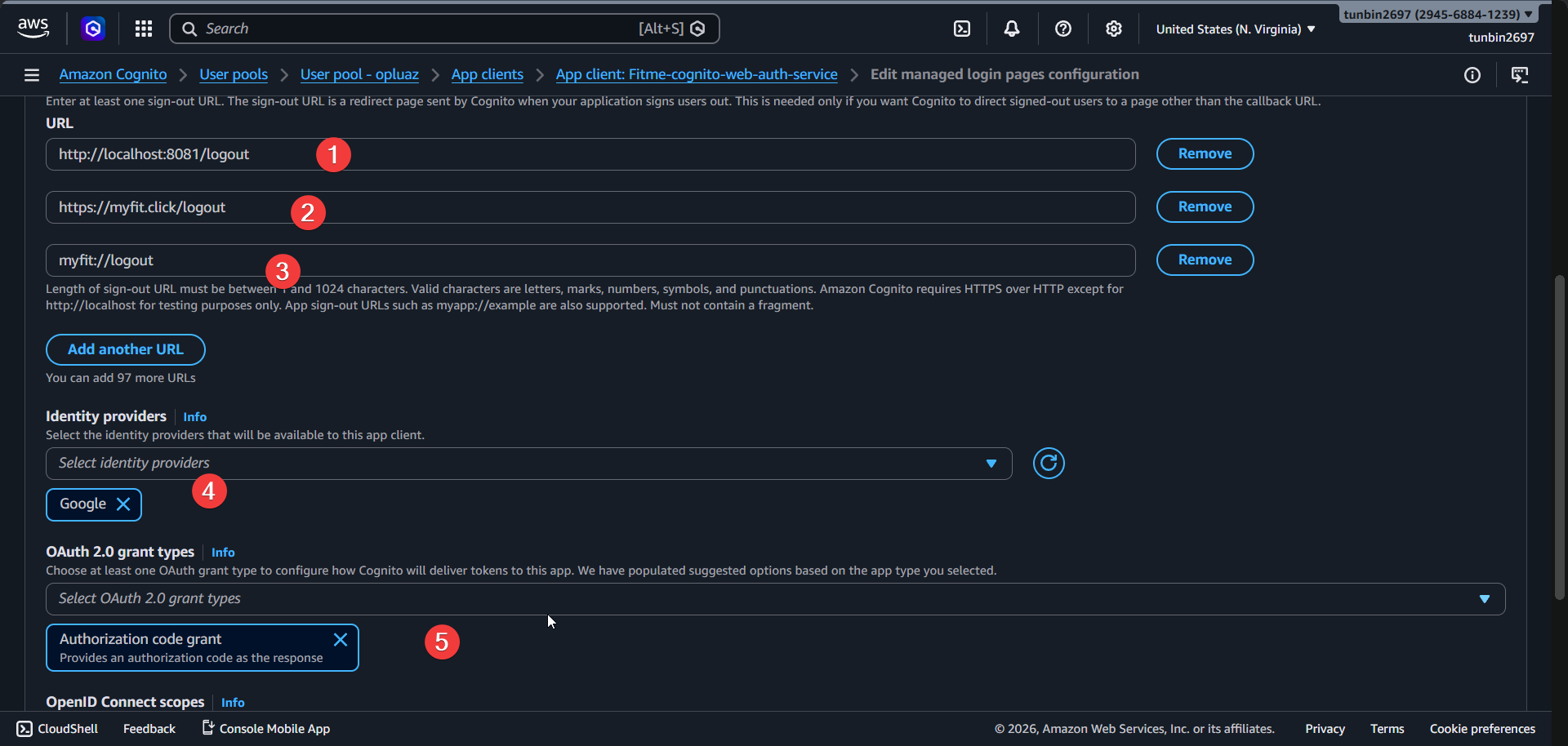
In OpenID Connect scopes, select:
emailopenidprofile
Click
Save changes.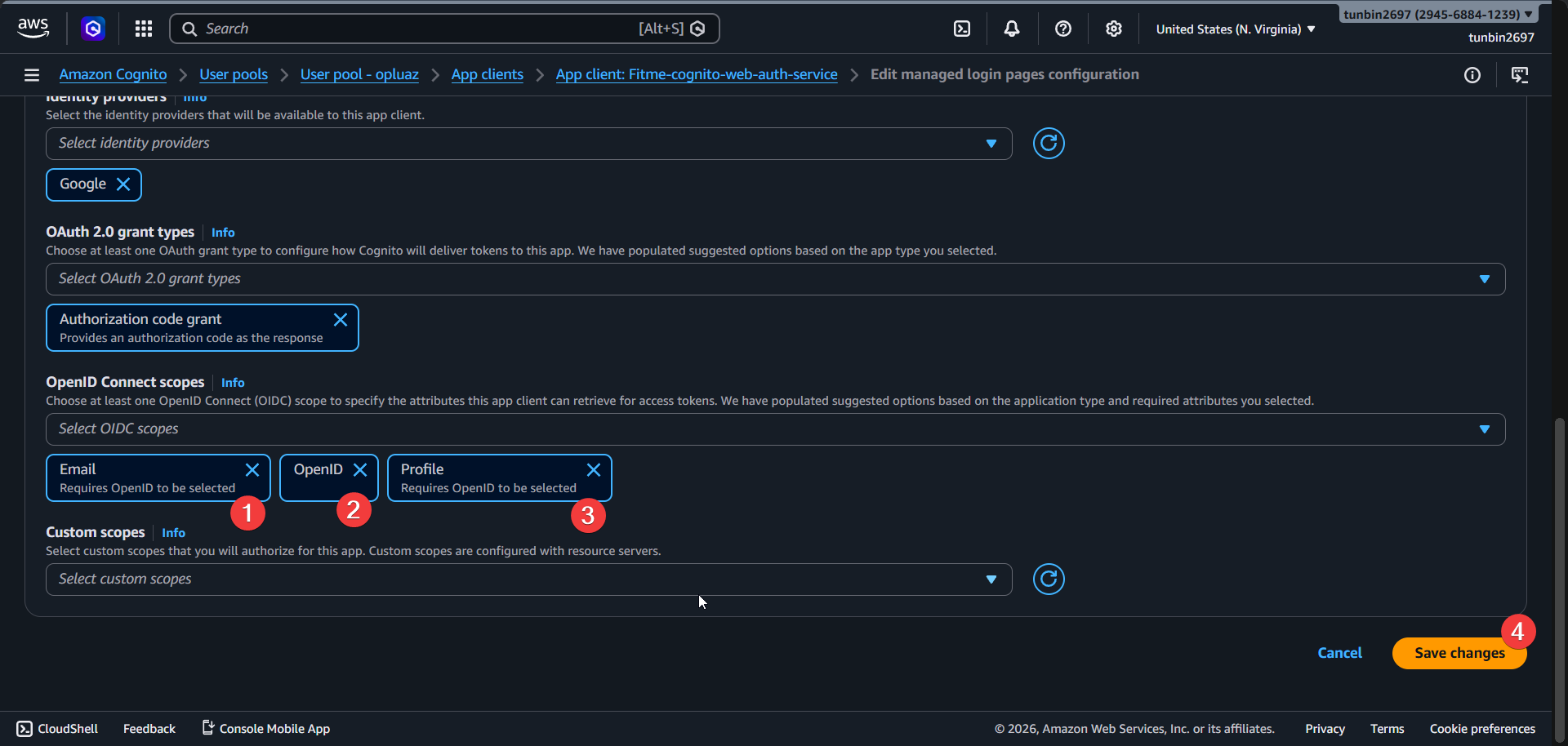
4. Verify Route 53 hosted zone and records
Notice: The workshop sample domain
myfit.clickis already registered by our team through MatBao and is shown only as a reference. For your own setup, use your own domain and DNS zone. If you want easier end-to-end setup, you can purchase a domain directly in Route 53 (for example,myapp.com) and use that domain in all steps.
Open Route 53 Console -
Hosted zones.Confirm hosted zone
myfit.clickexists and type isPublic.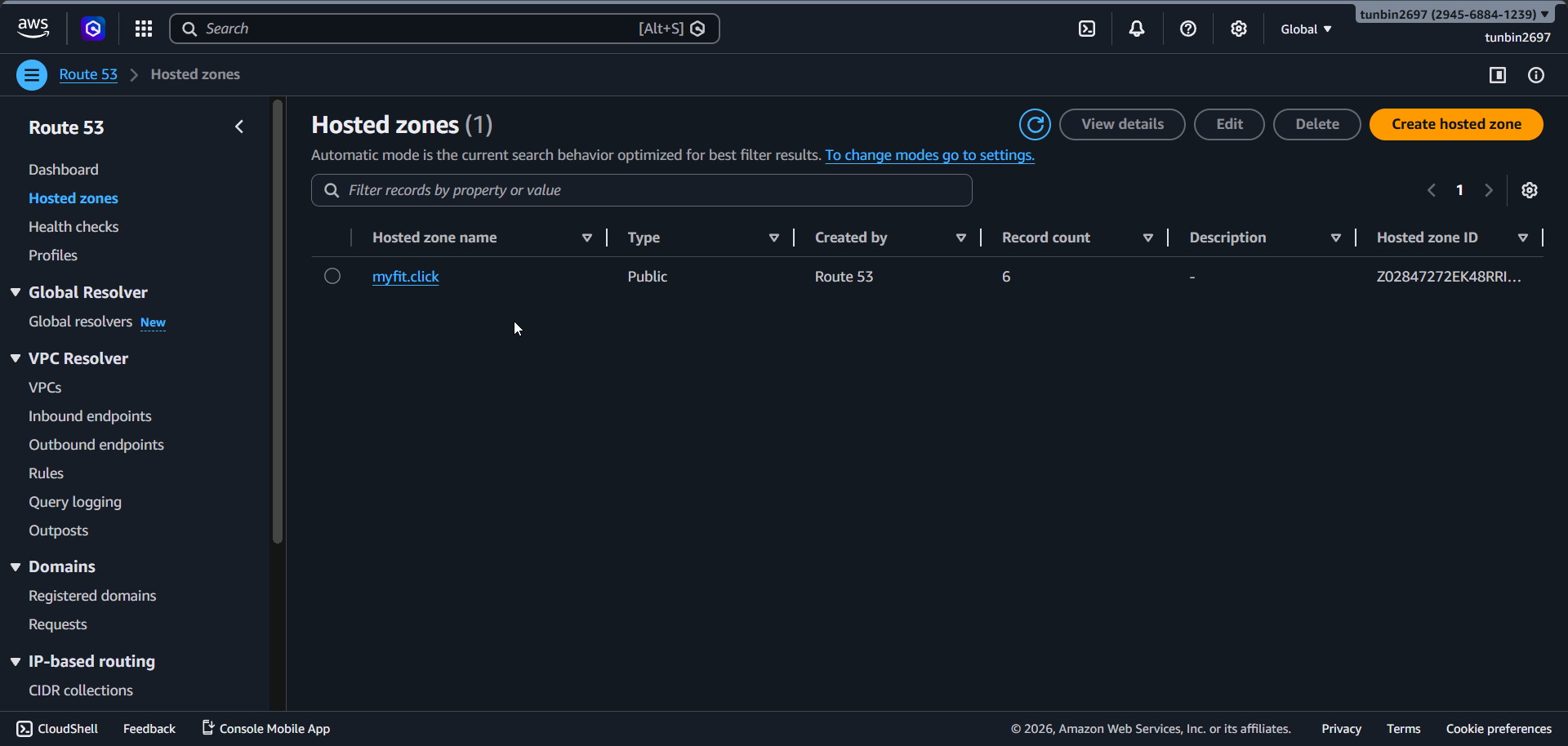
Open hosted zone
myfit.click-Records.Verify core records:
- Alias
Arecord formyfit.clickpoints to CloudFront domain. - Alias
Arecord forapi.myfit.clickpoints to ALB domain. - ACM validation
CNAMErecords formyfit.clickandapi.myfit.clickexist. - Default
NSandSOArecords exist.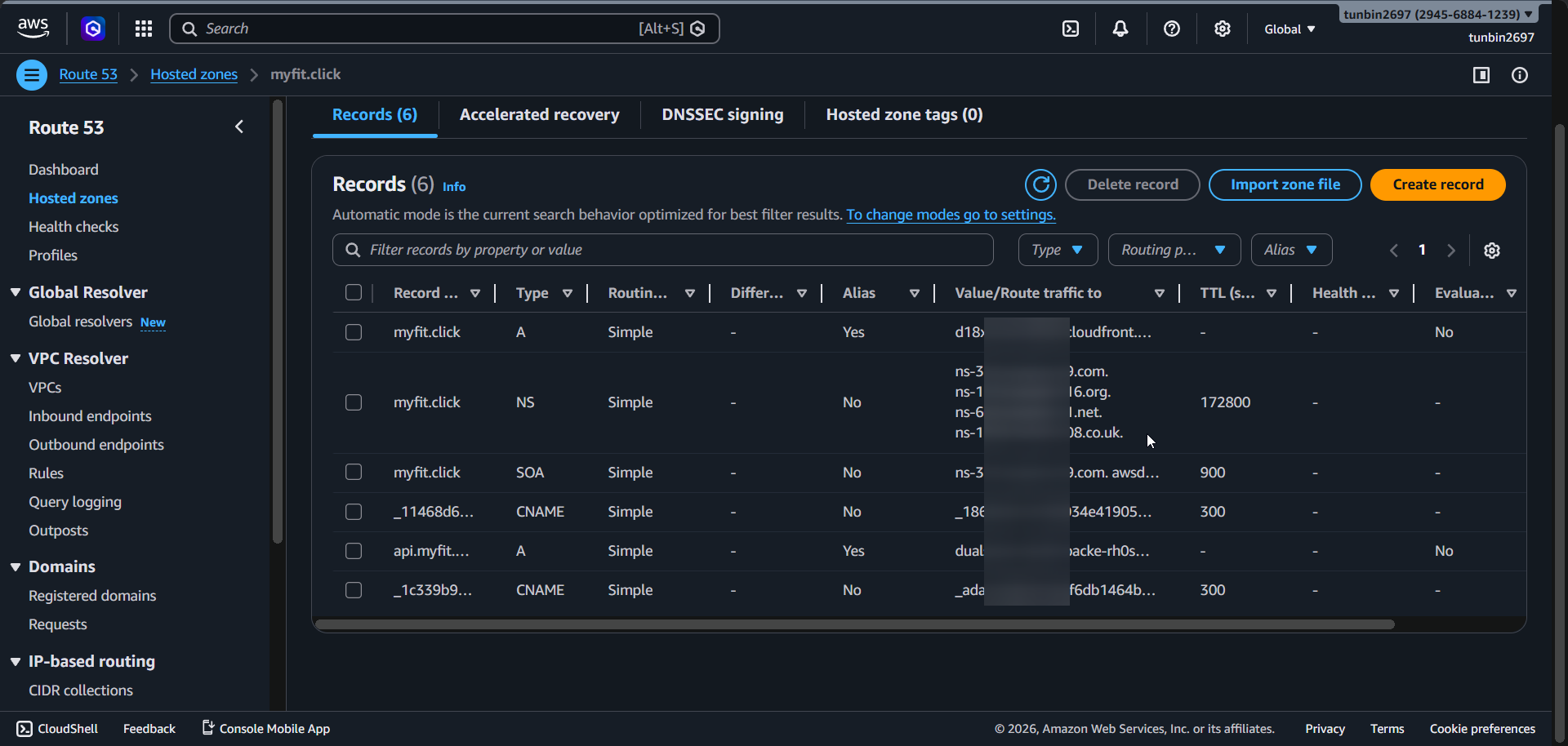
- Alias
5. Phase completion checklist
- Confirm Cognito user pool ID is
us-east-1_9AoKPqZO1. - Confirm app client ID is
661fm3mj7s5qcmoldri1mem9sr. - Confirm callback URLs include
http://localhost:8081/callback,https://myfit.click/callback, andmyfit://callback. - Confirm sign-out URLs include
http://localhost:8081/logout,https://myfit.click/logout, andmyfit://logout. - Confirm supported identity provider includes
Google. - Confirm OAuth flow is
codeand scopes includeemail,openid,profile.