Phase 5 - Frontend and CDN
1. Set up ACM certificate for custom domain
Open the AWS Console search bar, type
acm, and selectCertificate Manager.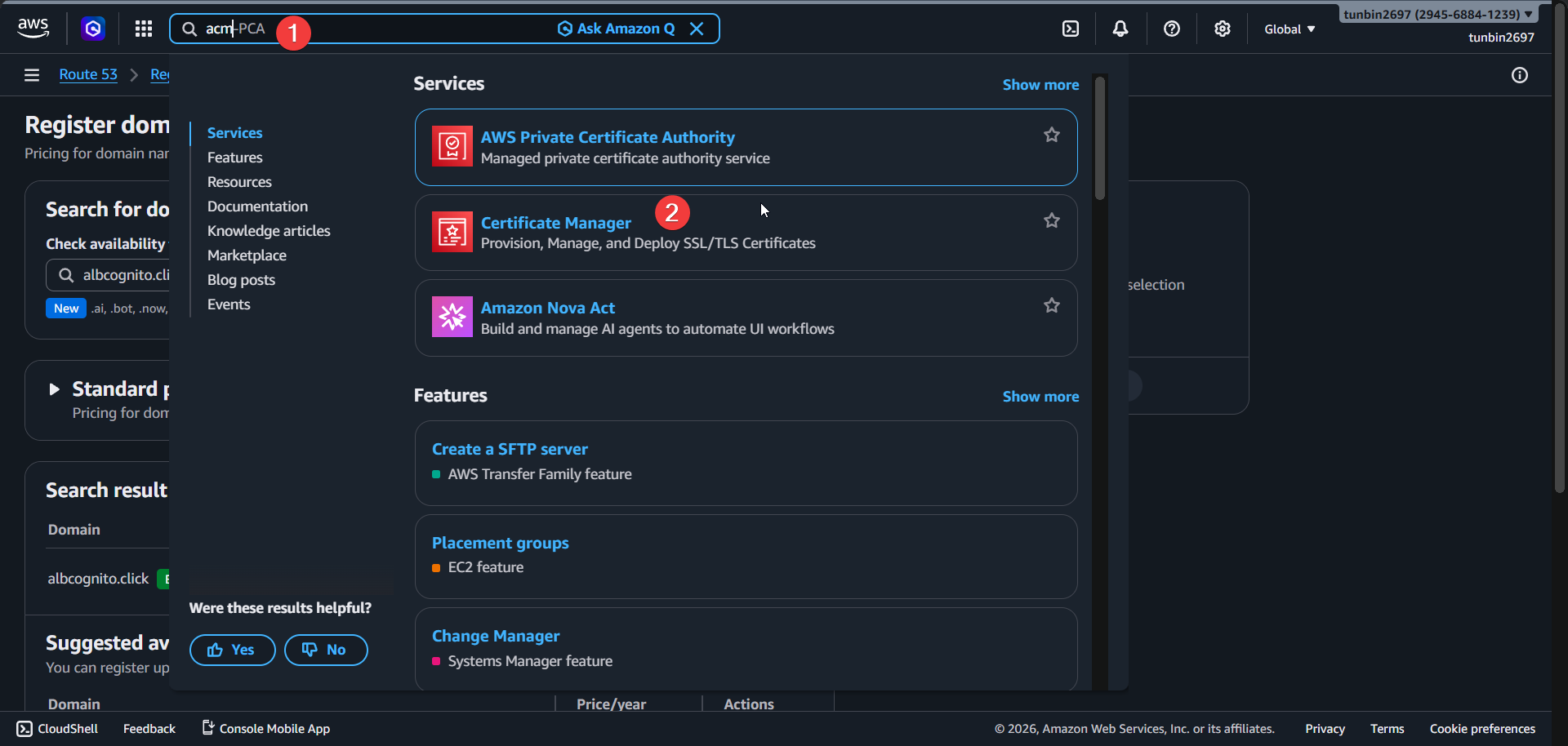
In ACM, click
Request certificate.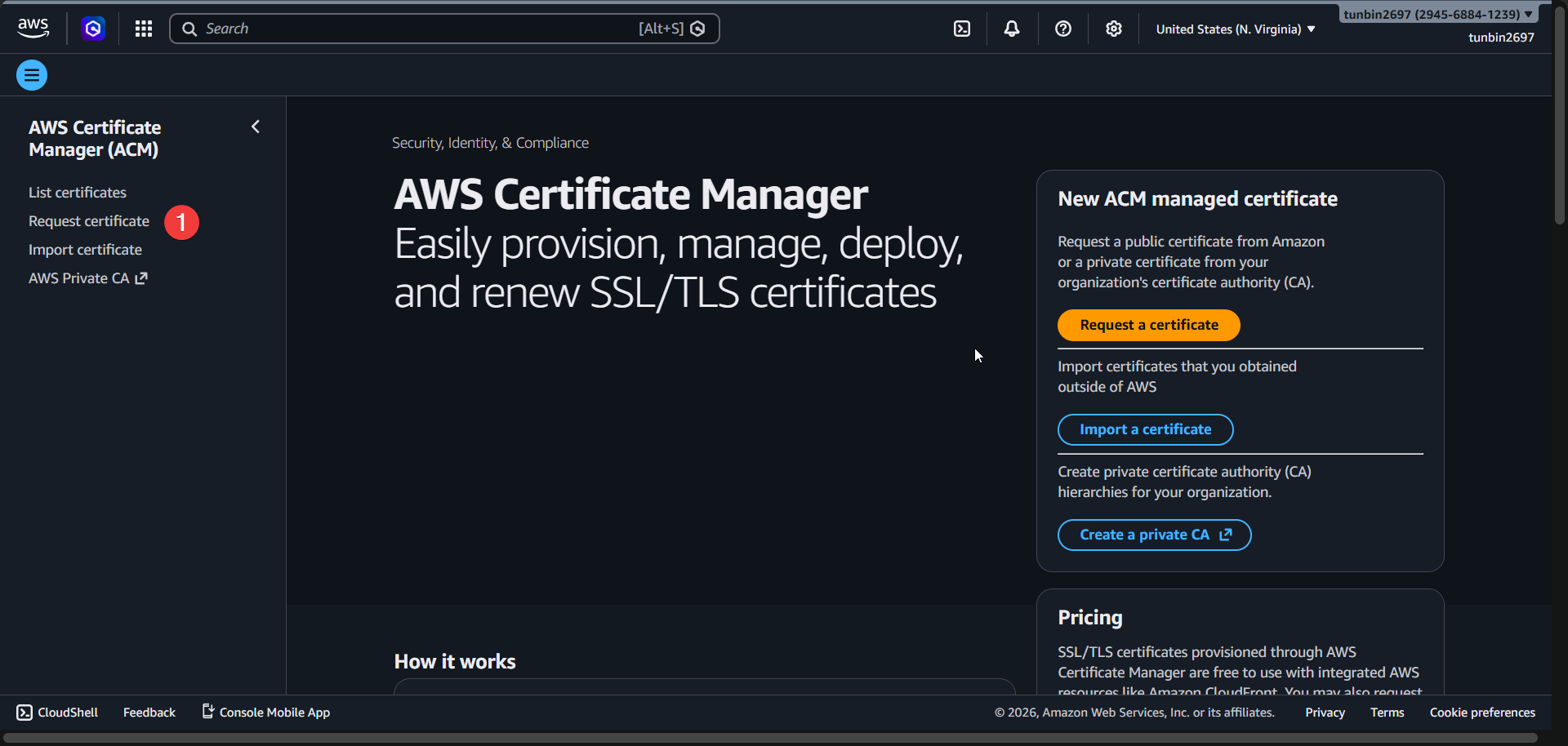
Select
Request a public certificate, then clickNext.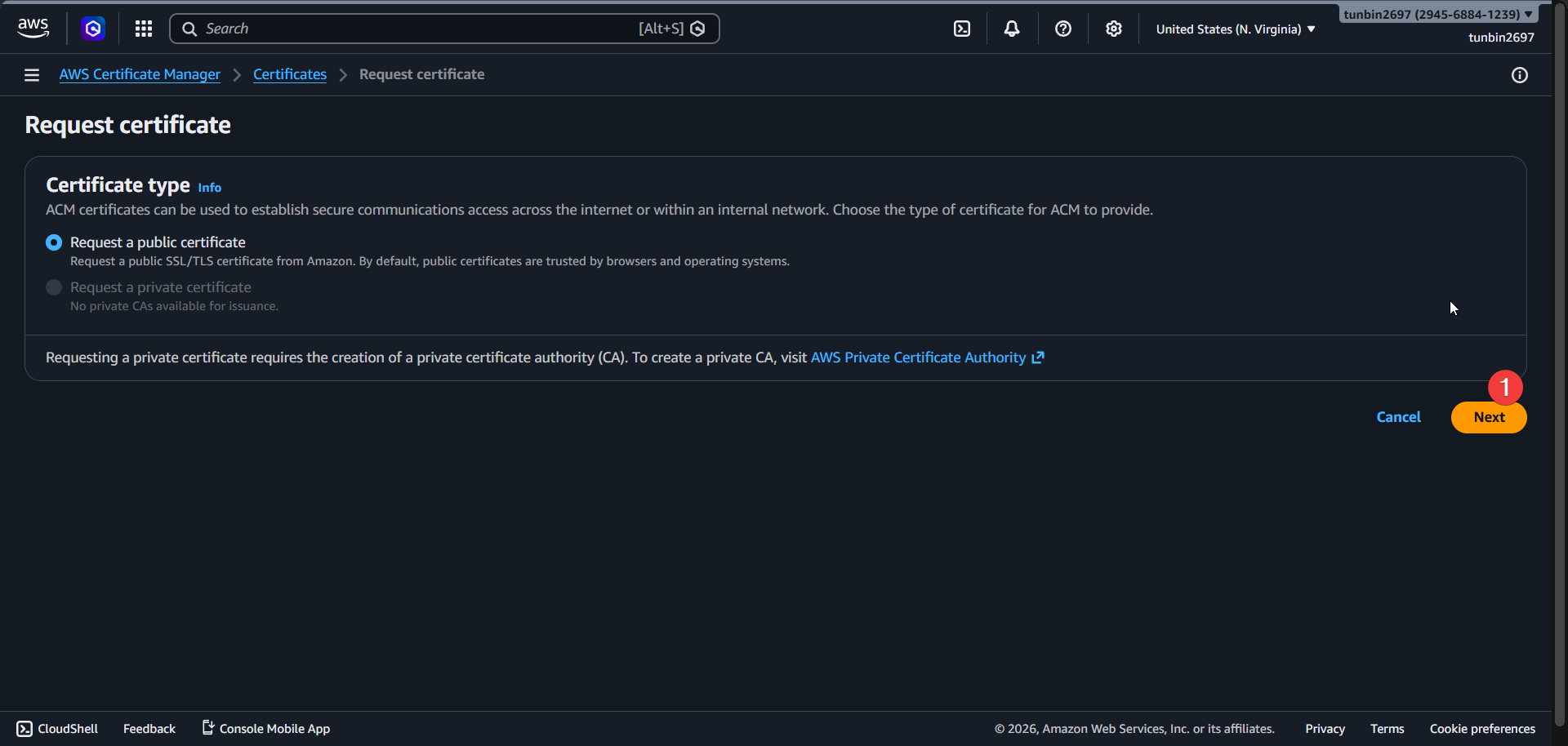
Enter fully qualified domain name as
<your-domain>(example:auth.example.com).Keep export option as
Disable export.Select validation method
DNS validation.Keep key algorithm
RSA 2048.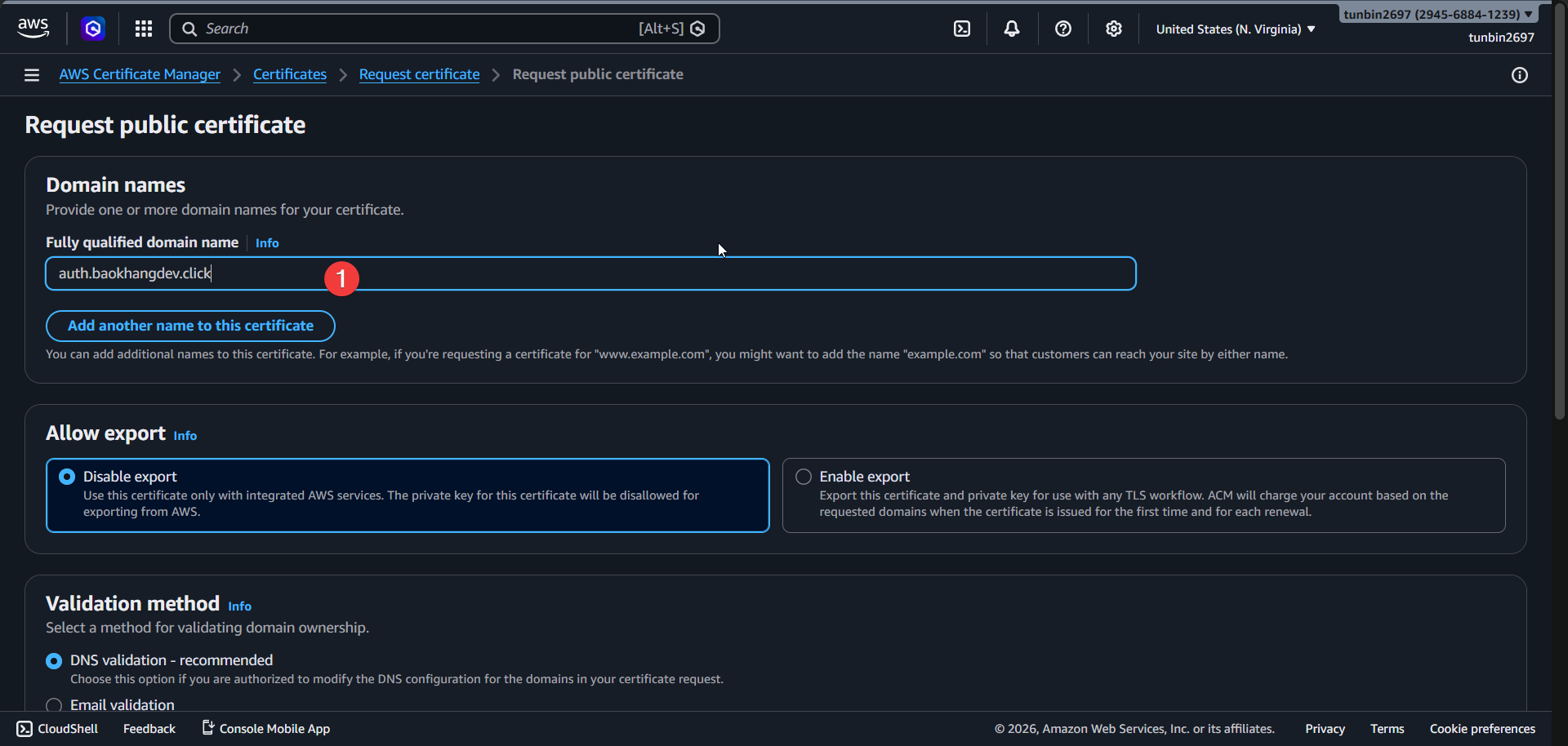
Scroll down and click
Request.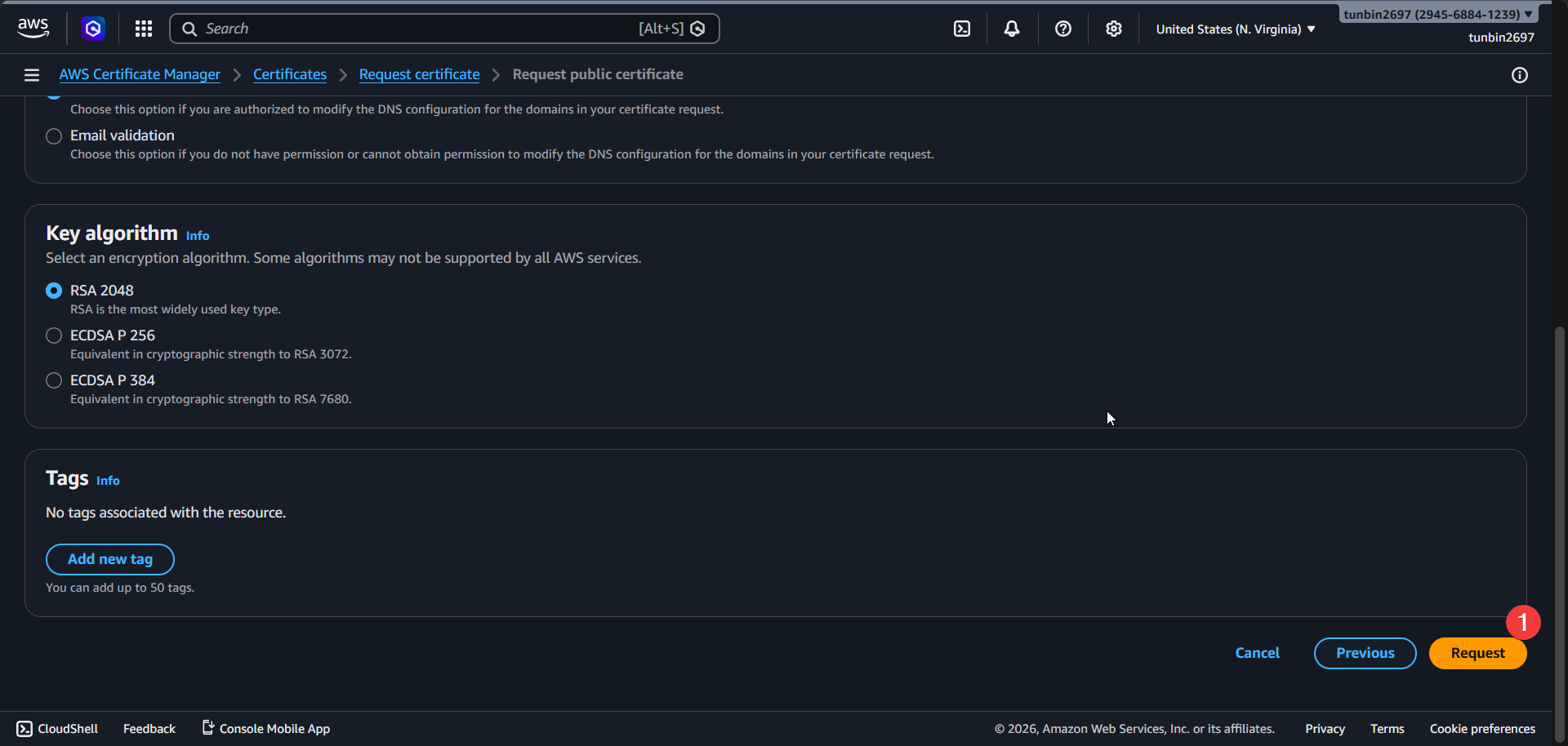
Open the created certificate and check domain validation details.
If Route 53 hosts your domain, click
Create records in Route 53.If not, manually create the shown
CNAME nameandCNAME valuein your DNS provider.Initial status is typically
Pending validation.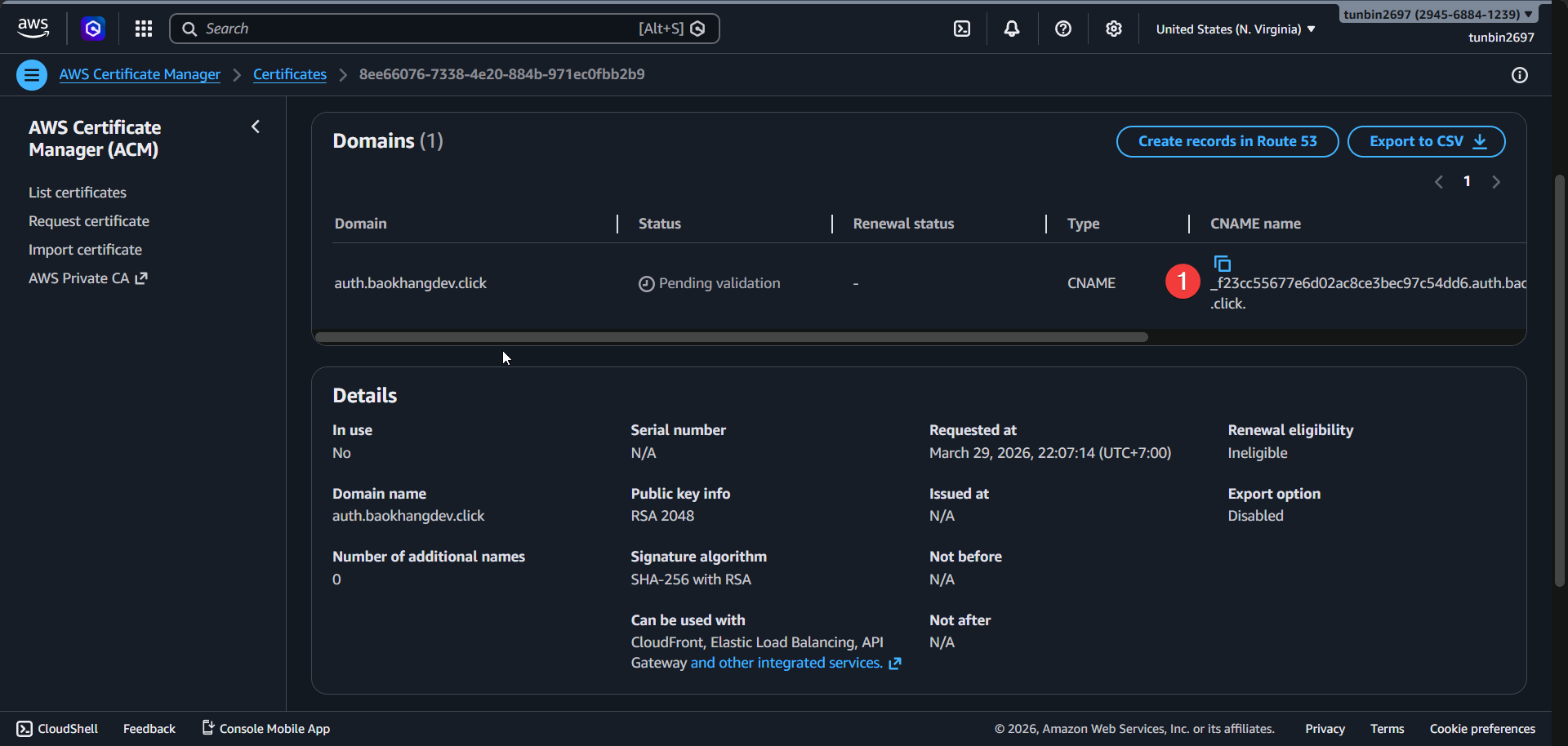
Wait until certificate status becomes
Issued.Copy and keep the certificate
ARNfor CloudFront in later steps.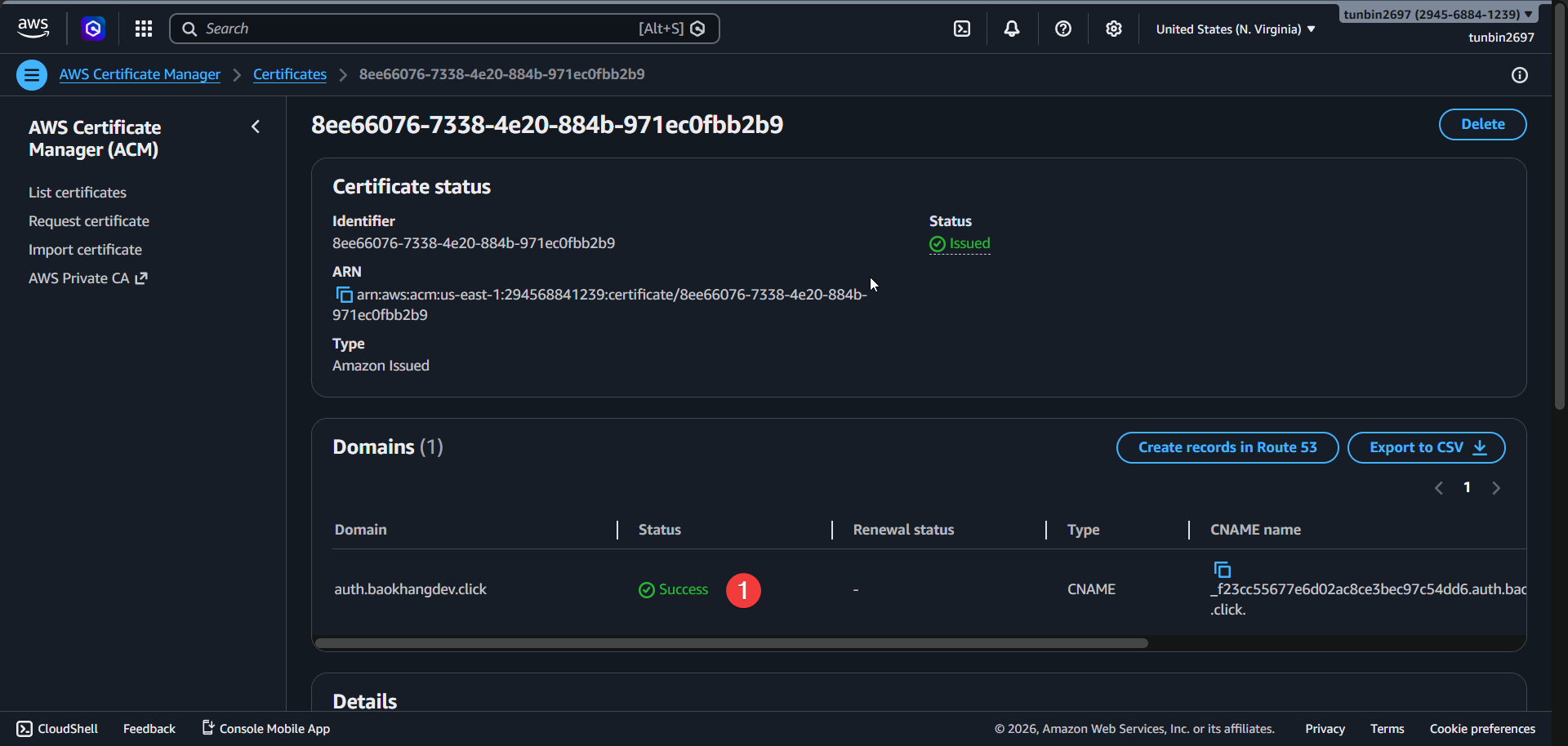
2. Create frontend S3 bucket
Open S3 Console - Buckets -
Create bucket.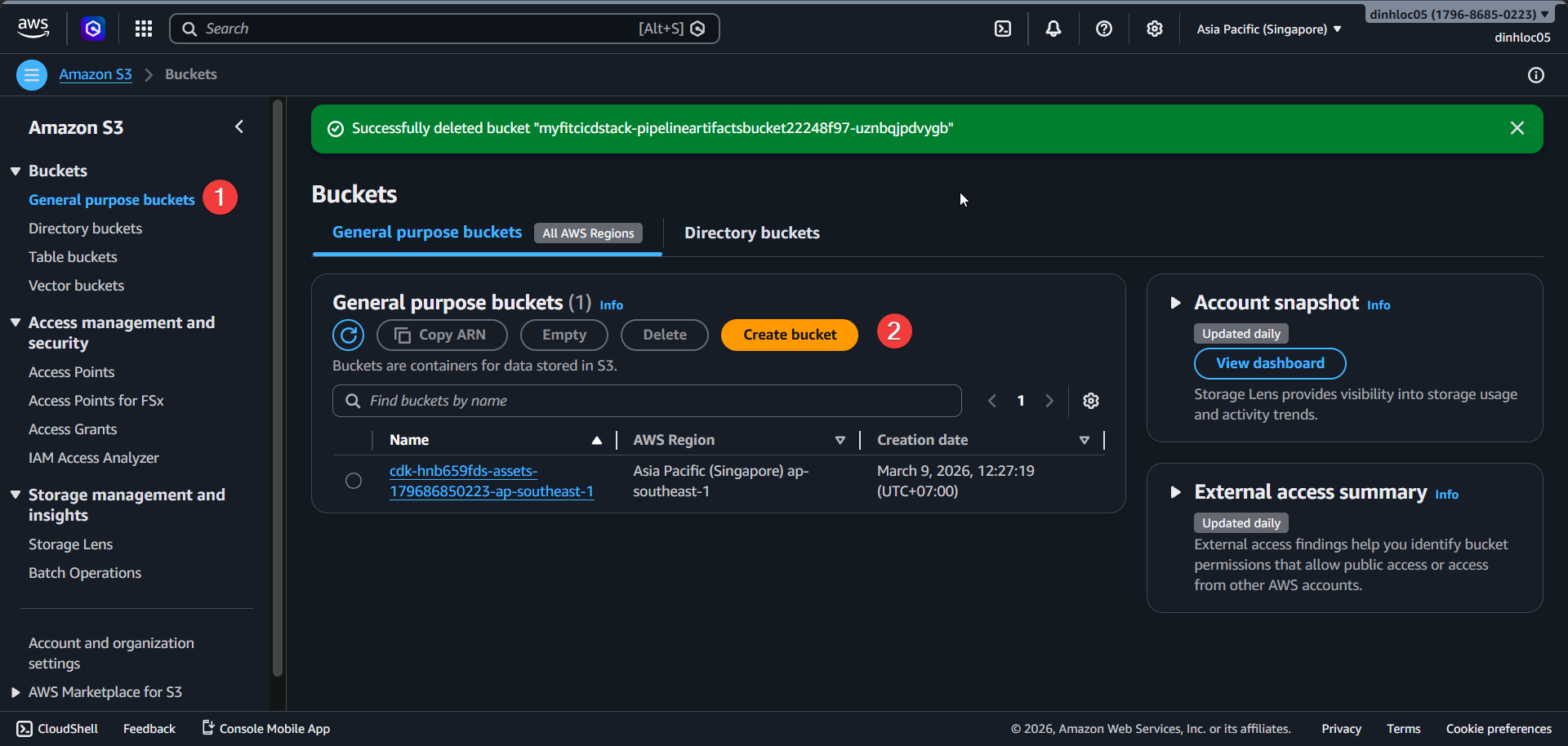
Set
Bucket typetoGeneral purpose.Enter
Bucket nameas<your-frontend-bucket-name>.Keep
Object OwnershipasACLs disabled (Bucket owner enforced).Keep
Block all public accessenabled.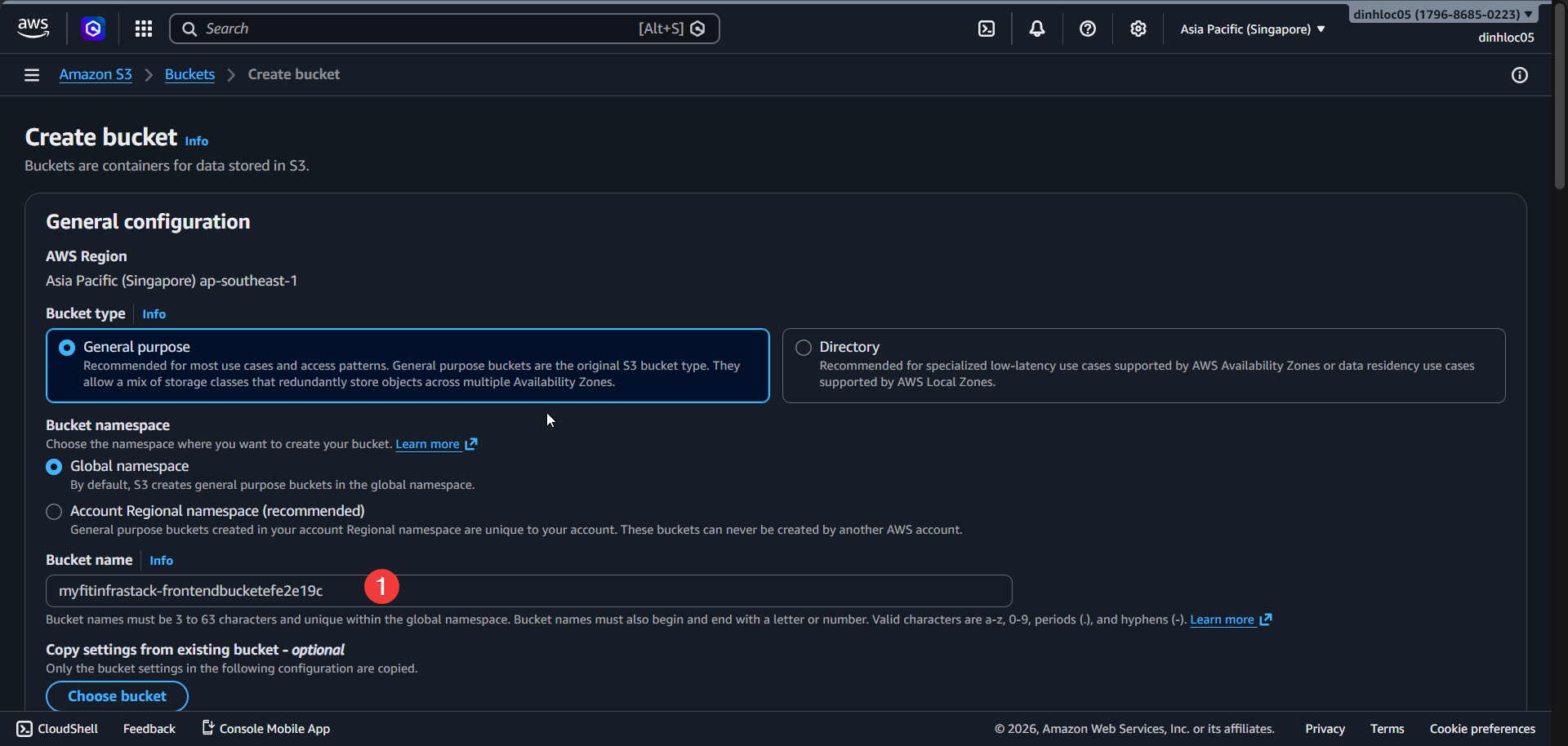
Keep
Bucket Versioningenabled.Keep
Default encryptionasSSE-S3.Keep
Object Lockdisabled.Click
Create bucket.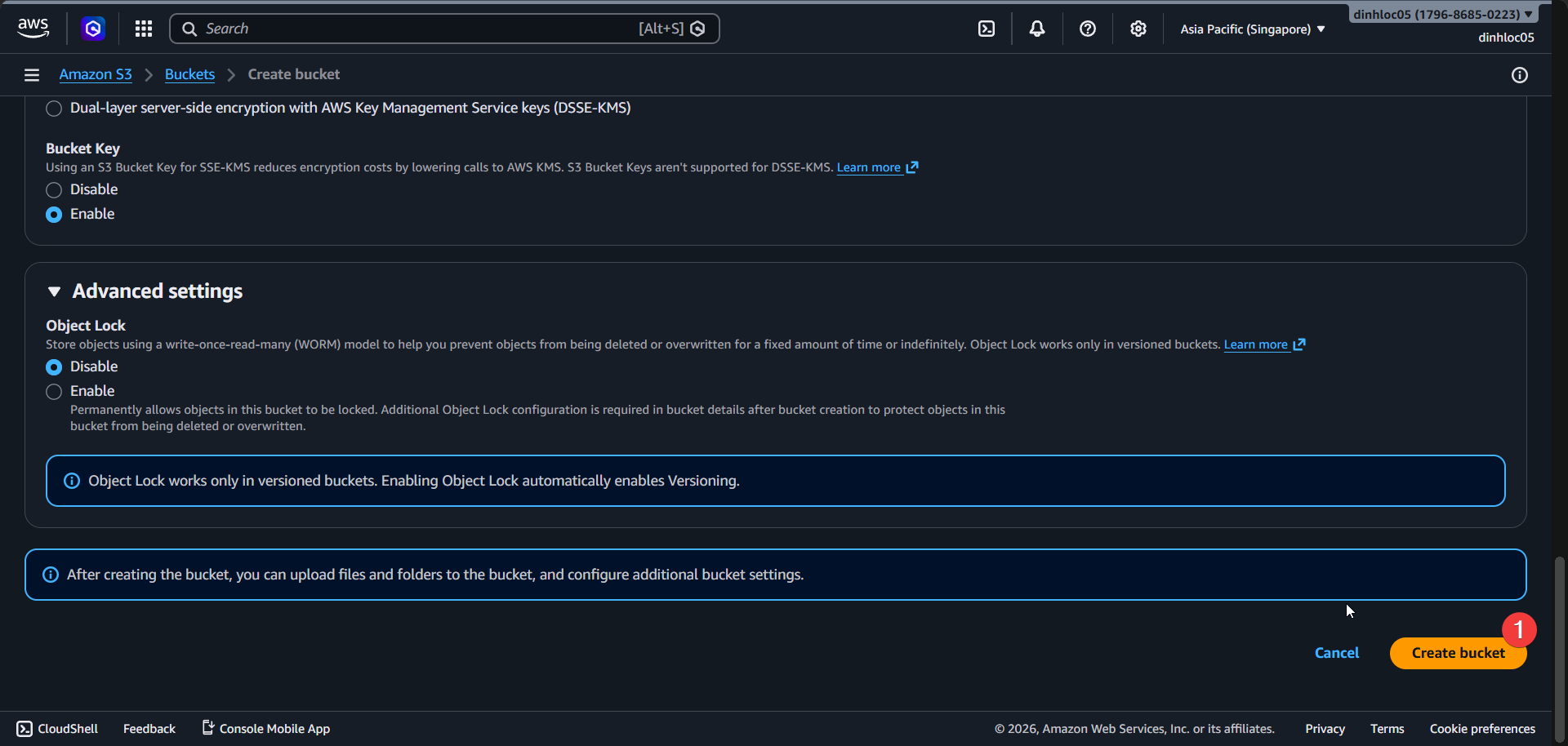
Open the created bucket -
Permissionstab.Verify
Block public accessremains enabled.Click
EditinBucket policy.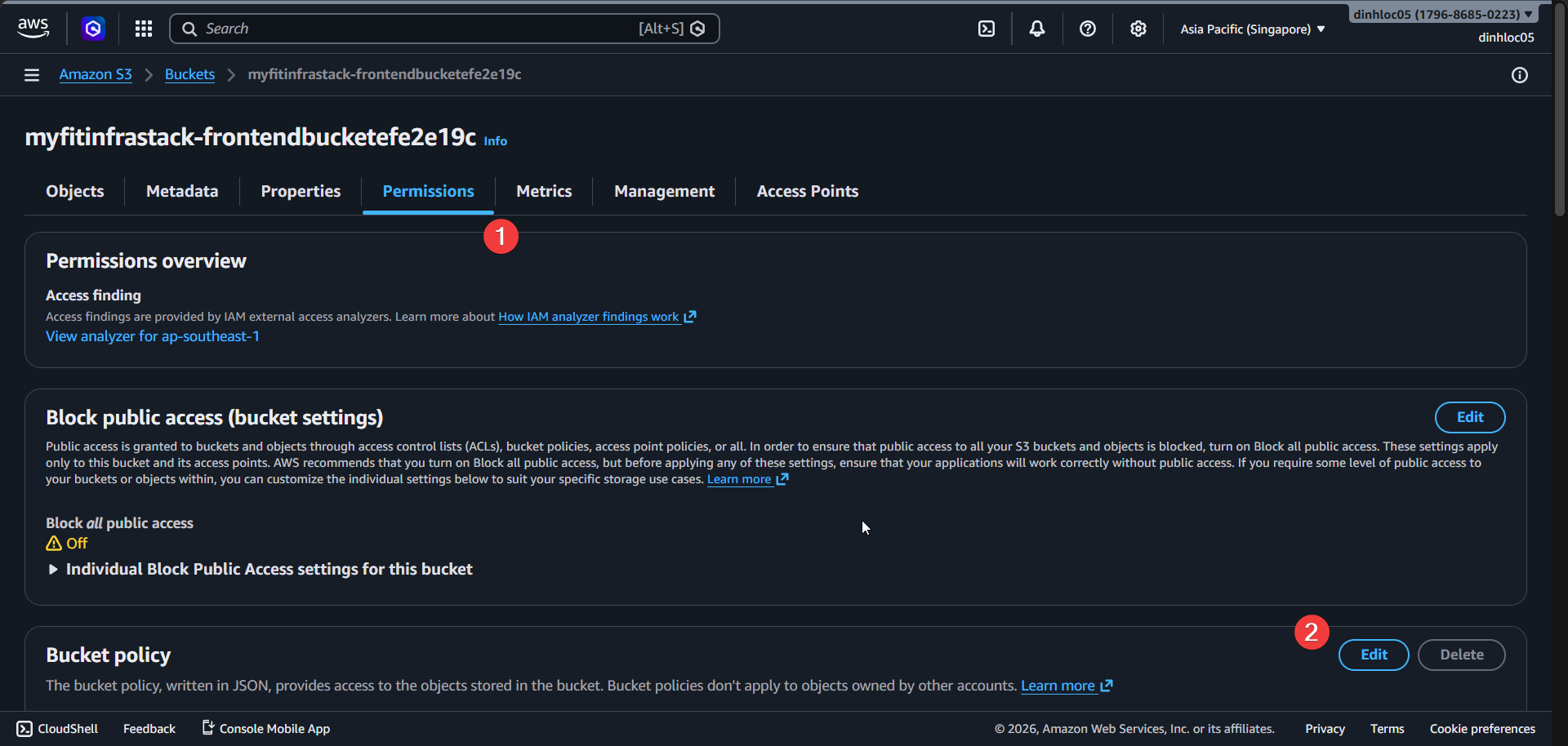
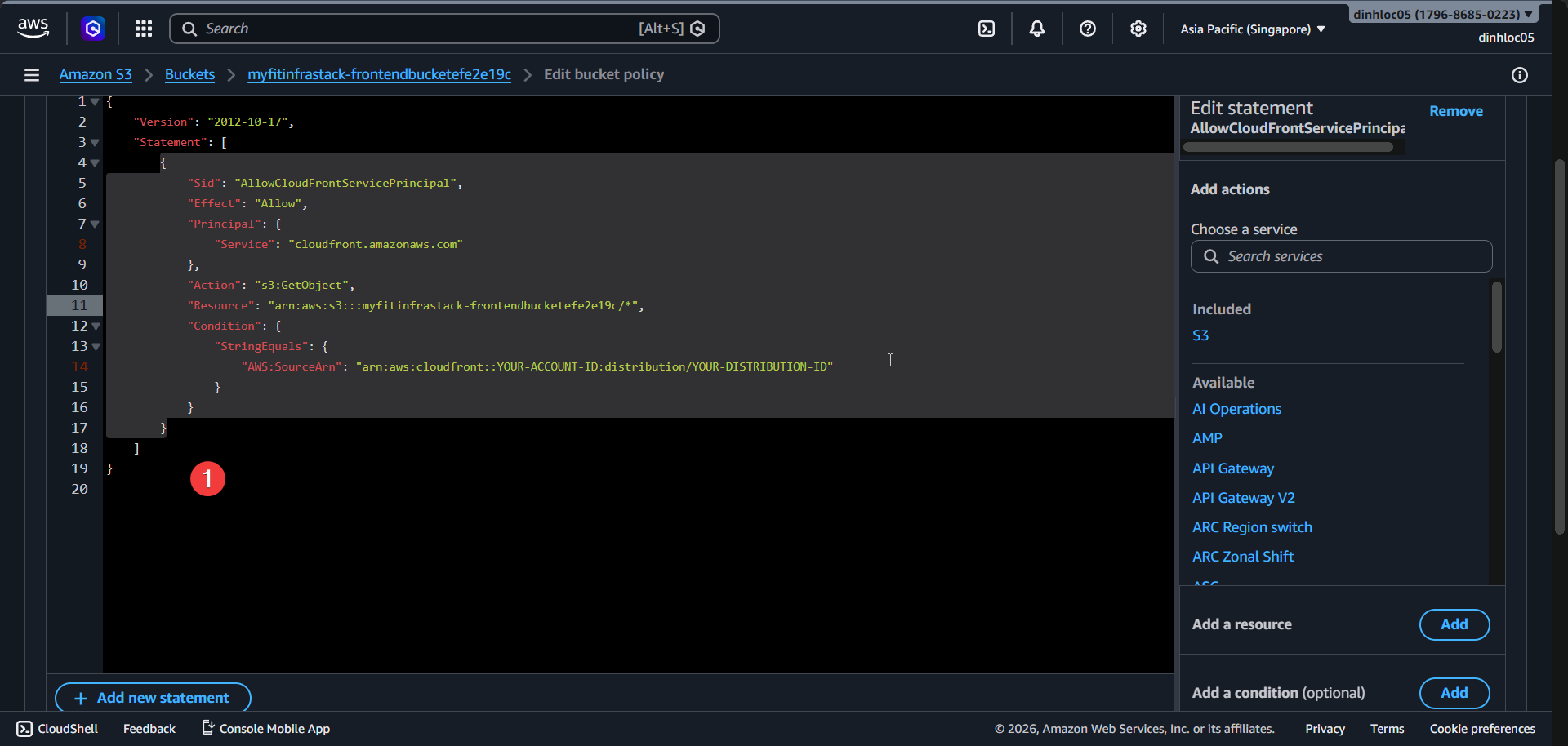
Add a CloudFront read policy for this bucket.
Set
AWS:SourceArnto your CloudFront distribution ARN pattern:arn:aws:cloudfront::<account-id>:distribution/<your-distribution-id>Save changes.
Use the following bucket policy JSON:
{
	"Version": "2012-10-17",
	"Statement": [
		{
			"Effect": "Allow",
			"Principal": {
				"AWS": "arn:aws:iam::cloudfront:user/CloudFront Origin Access Identity <YOUR_CLOUDFRONT_OAI_ID>"
			},
			"Action": [
				"s3:GetBucket*",
				"s3:GetObject*",
				"s3:List*"
			],
			"Resource": [
				"arn:aws:s3:::<your-s3-bucket-name>",
				"arn:aws:s3:::<your-s3-bucket-name>/*"
			]
		},
		{
			"Effect": "Allow",
			"Principal": {
				"AWS": "arn:aws:iam::cloudfront:user/CloudFront Origin Access Identity <YOUR_CLOUDFRONT_OAI_ID>"
			},
			"Action": "s3:GetObject",
			"Resource": "arn:aws:s3:::<your-s3-bucket-name>/*"
		},
		{
			"Sid": "AllowCloudFrontServicePrincipal",
			"Effect": "Allow",
			"Principal": {
				"Service": "cloudfront.amazonaws.com"
			},
			"Action": "s3:GetObject",
			"Resource": "arn:aws:s3:::<your-s3-bucket-name>/*",
			"Condition": {
				"ArnLike": {
					"AWS:SourceArn": "arn:aws:cloudfront::YOUR_ACCOUNT_ID:distribution/<your-cloudfront-name>"
				}
			}
		}
	]
}
- Open
Objectstab and upload your frontend build output. - Verify
index.htmlandassetsare present.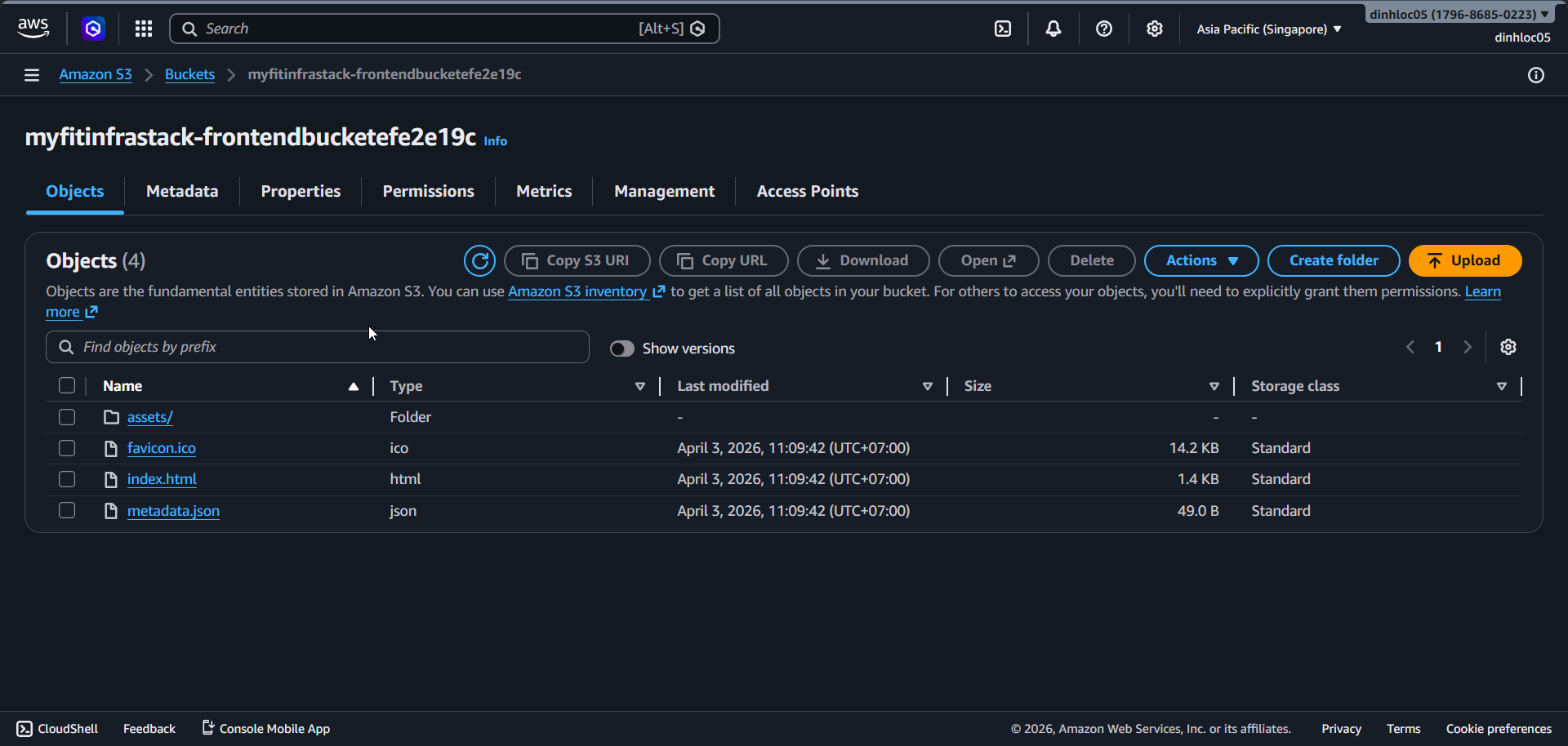
3. Create CloudFront distribution for frontend
Open CloudFront Console - Distributions -
Create distribution.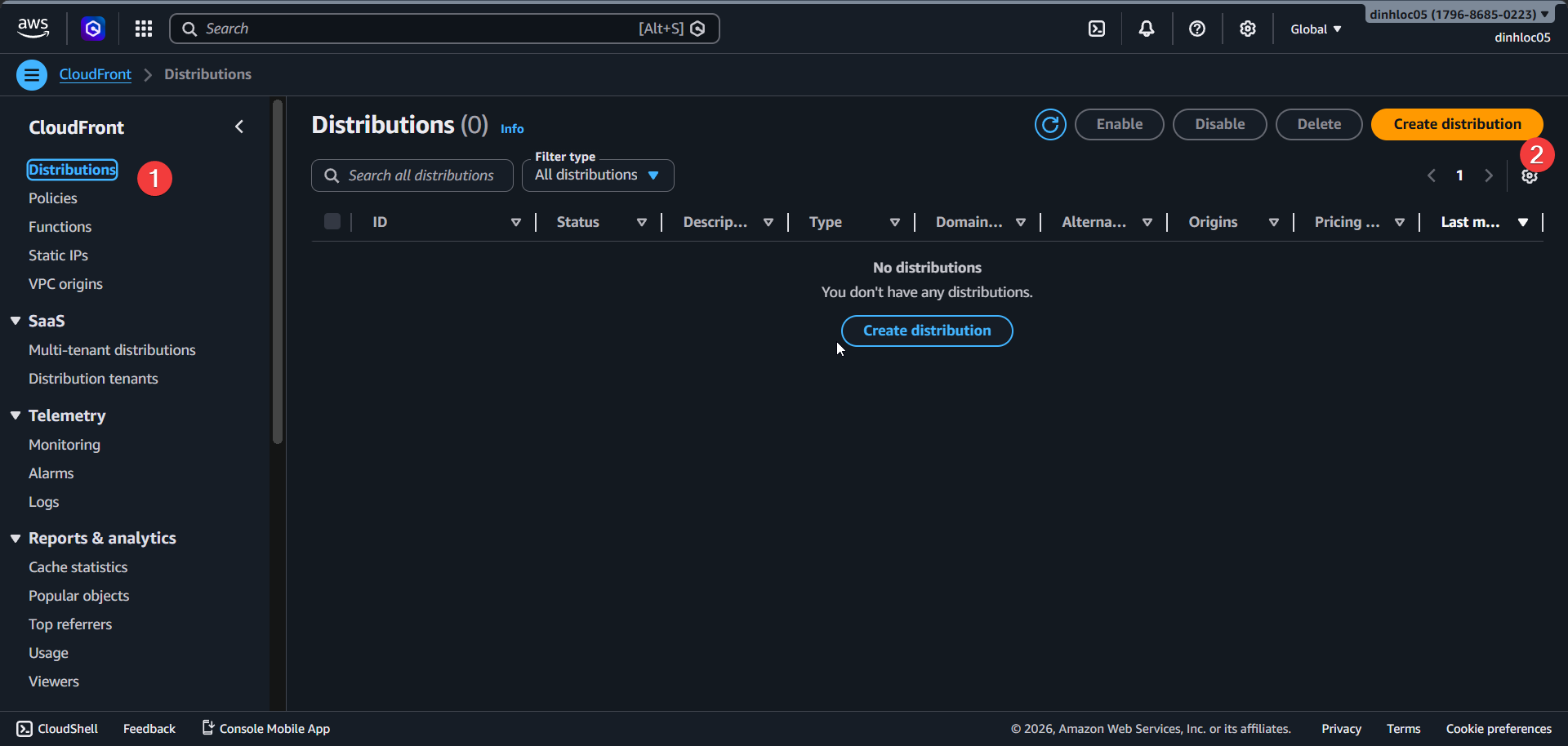
Select plan:
Free.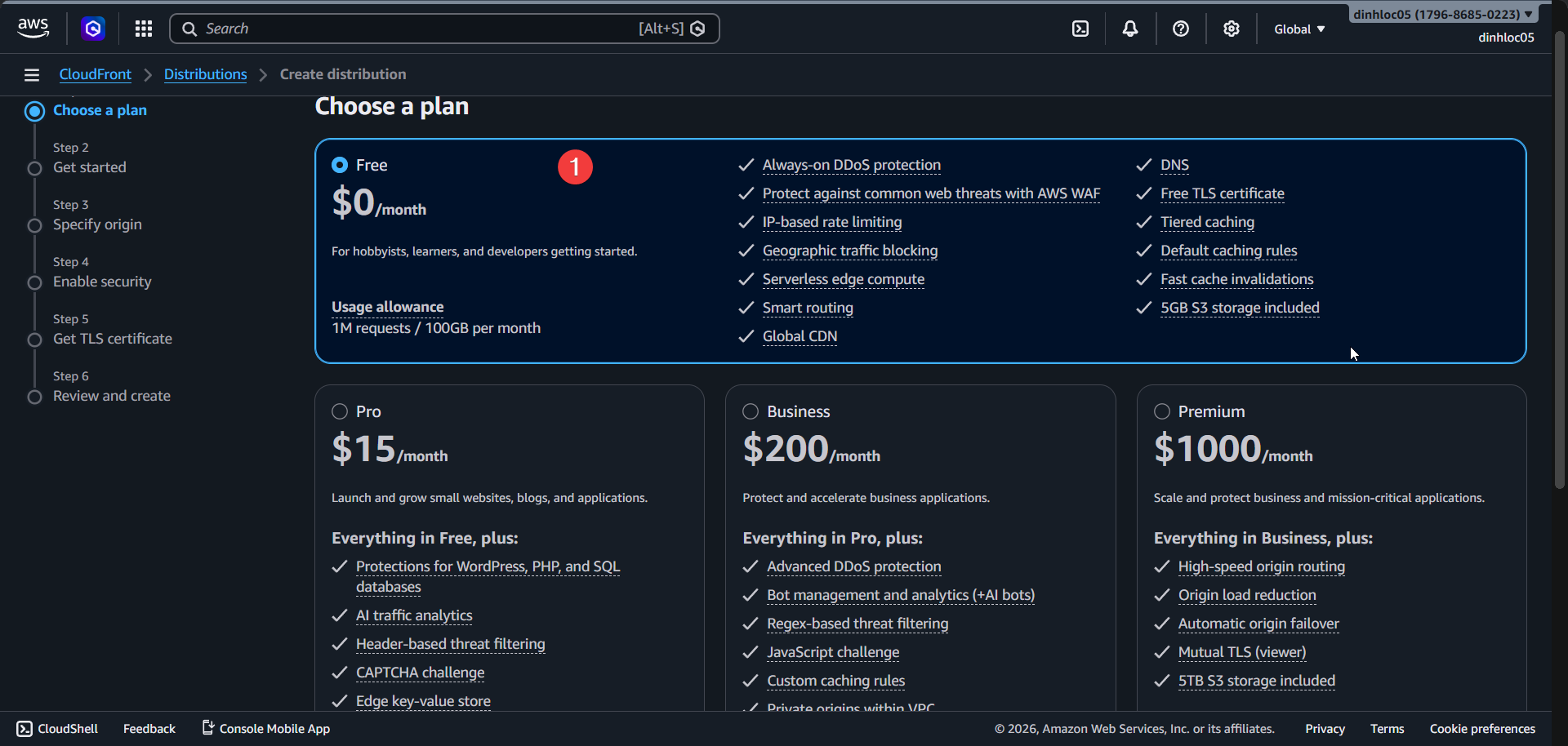
Enter
Distribution nameas<your-distribution-name>.Select
Distribution type:Single website or app.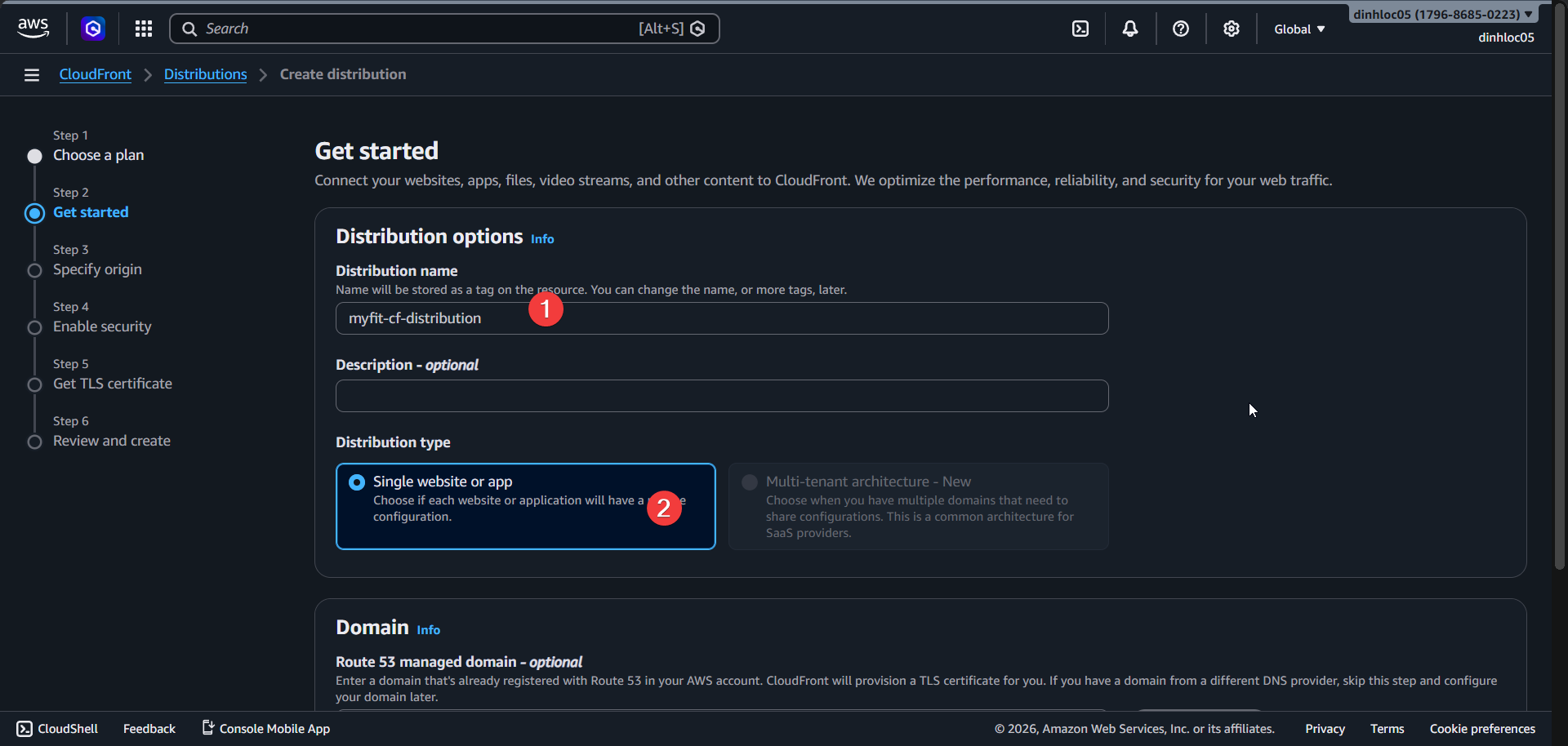
Select
Origin type:Amazon S3.Select your frontend S3 bucket as origin.
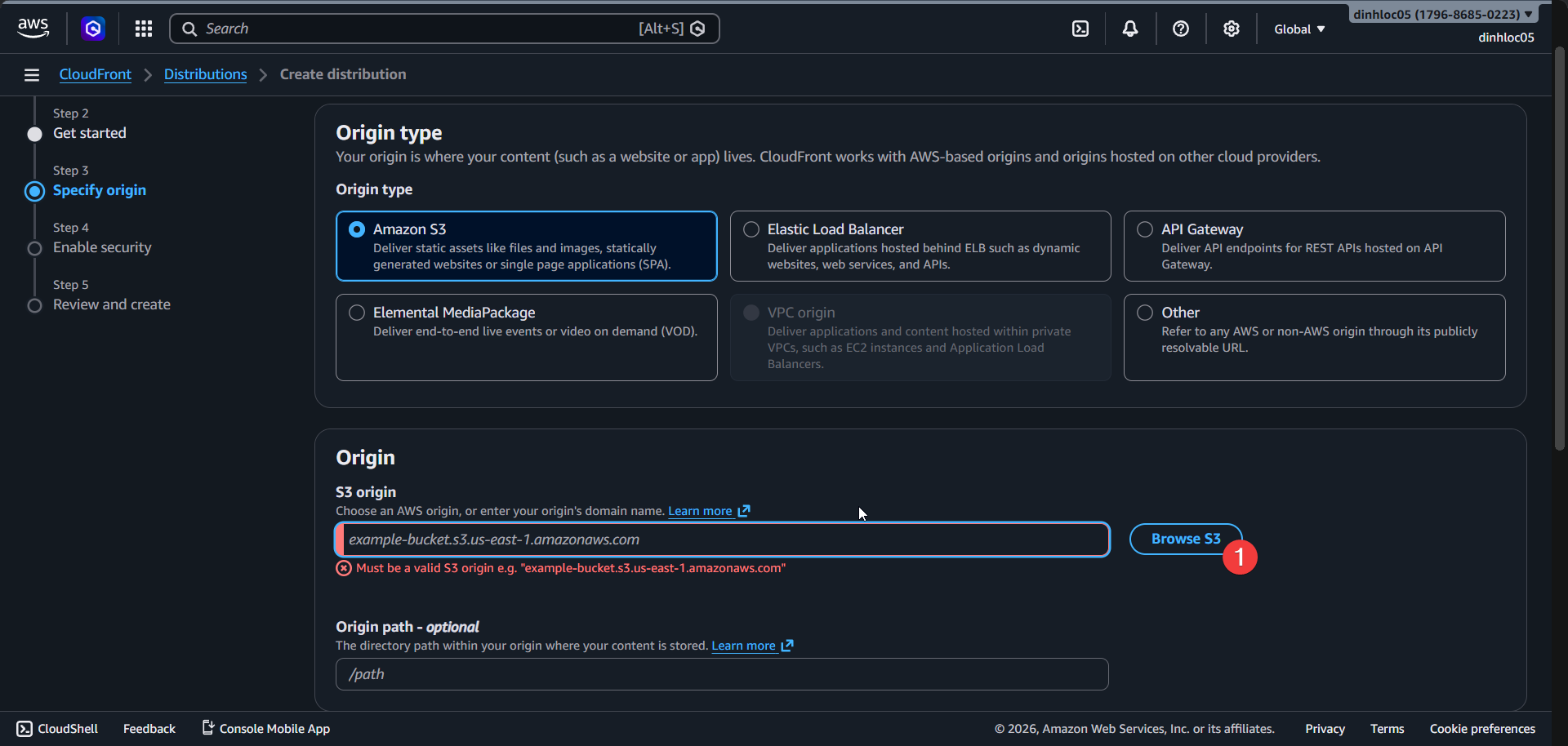
Keep security protections enabled.
Click
Create distribution.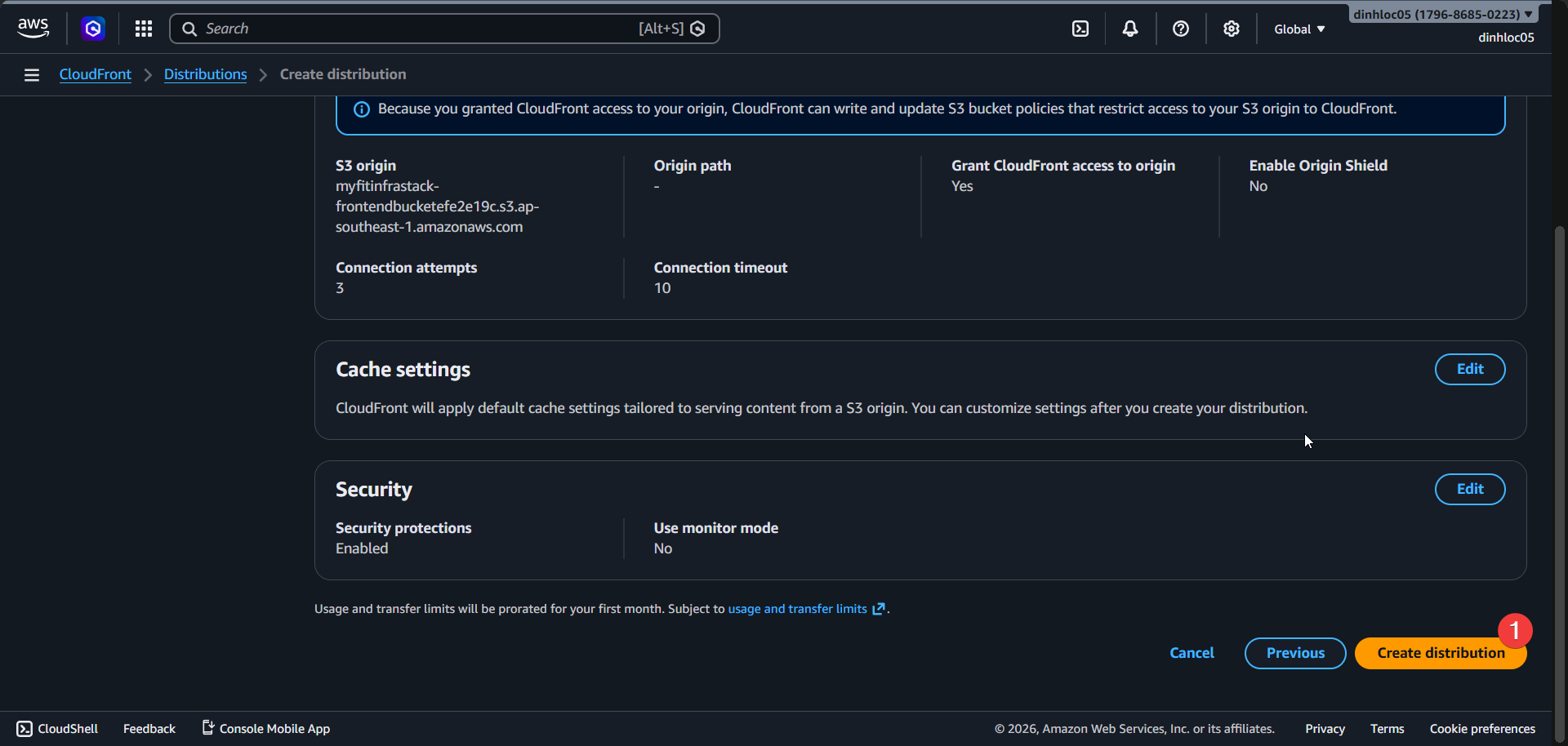
Wait for status to become
Deployed.Copy CloudFront domain name as
<your-cloudfront-domain>.
4. Add custom domain and TLS certificate
Open your distribution -
Generaltab - clickAdd domain.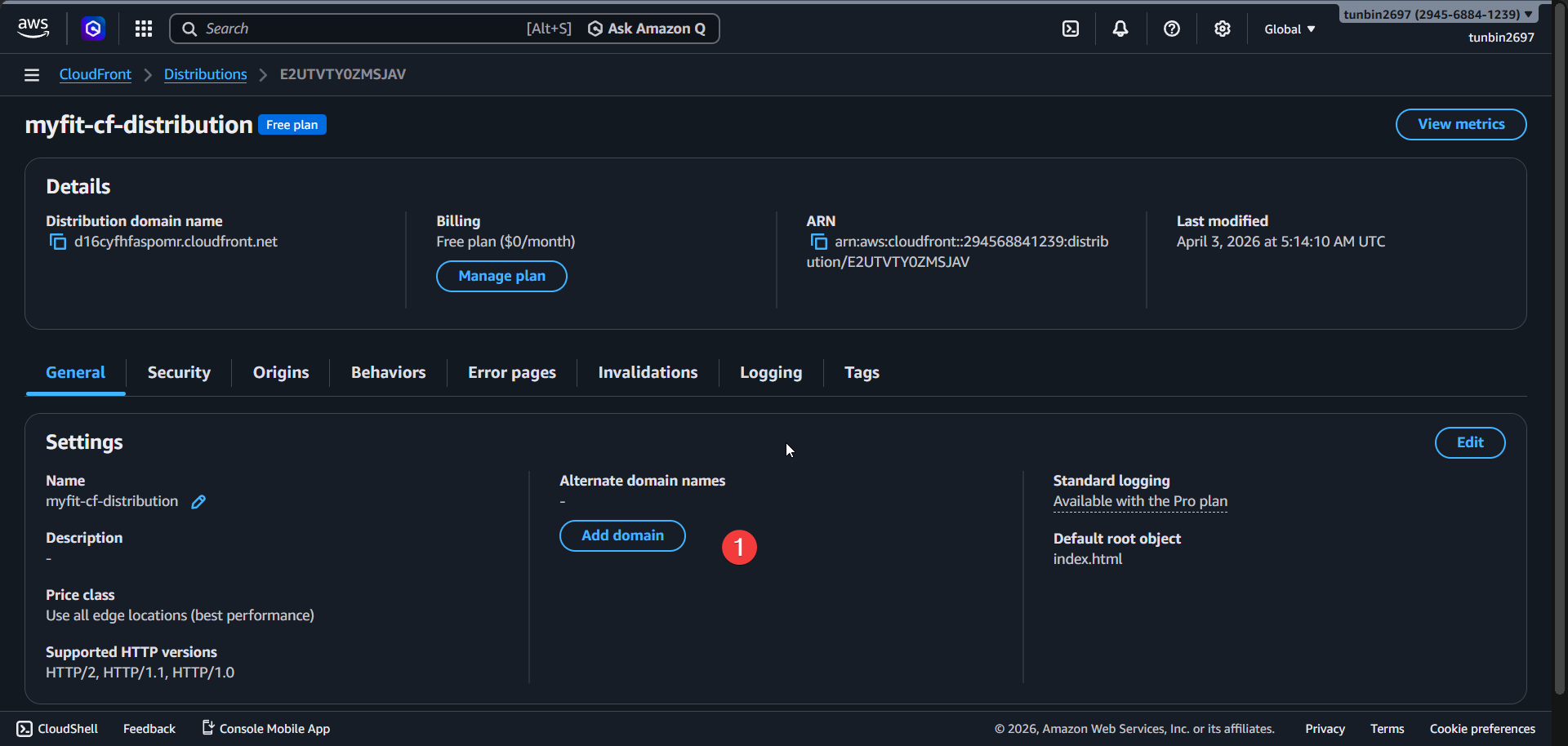
Enter
Domains to serveas<your-domain>.Click
Next.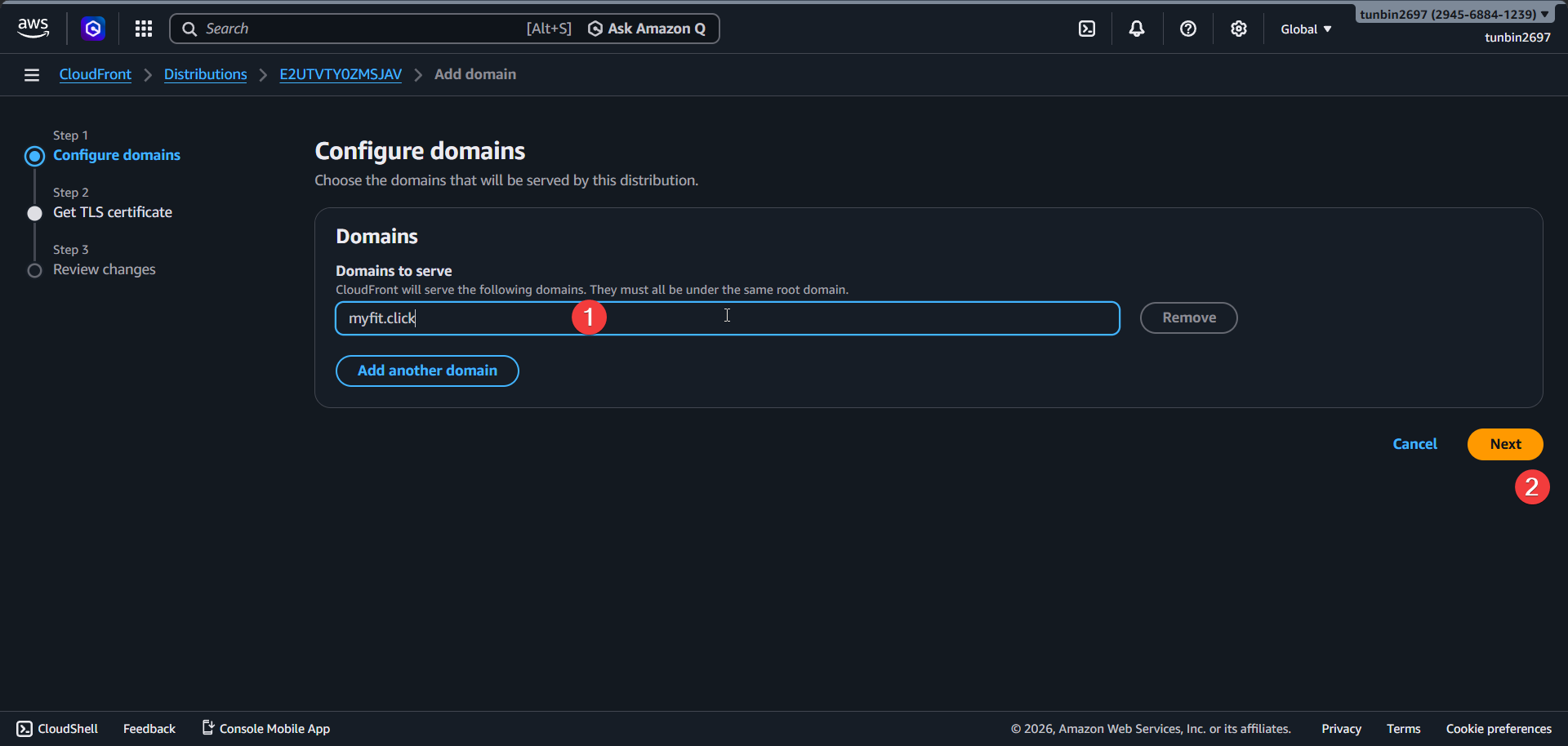
Select the ACM certificate from section
1.Click
Next.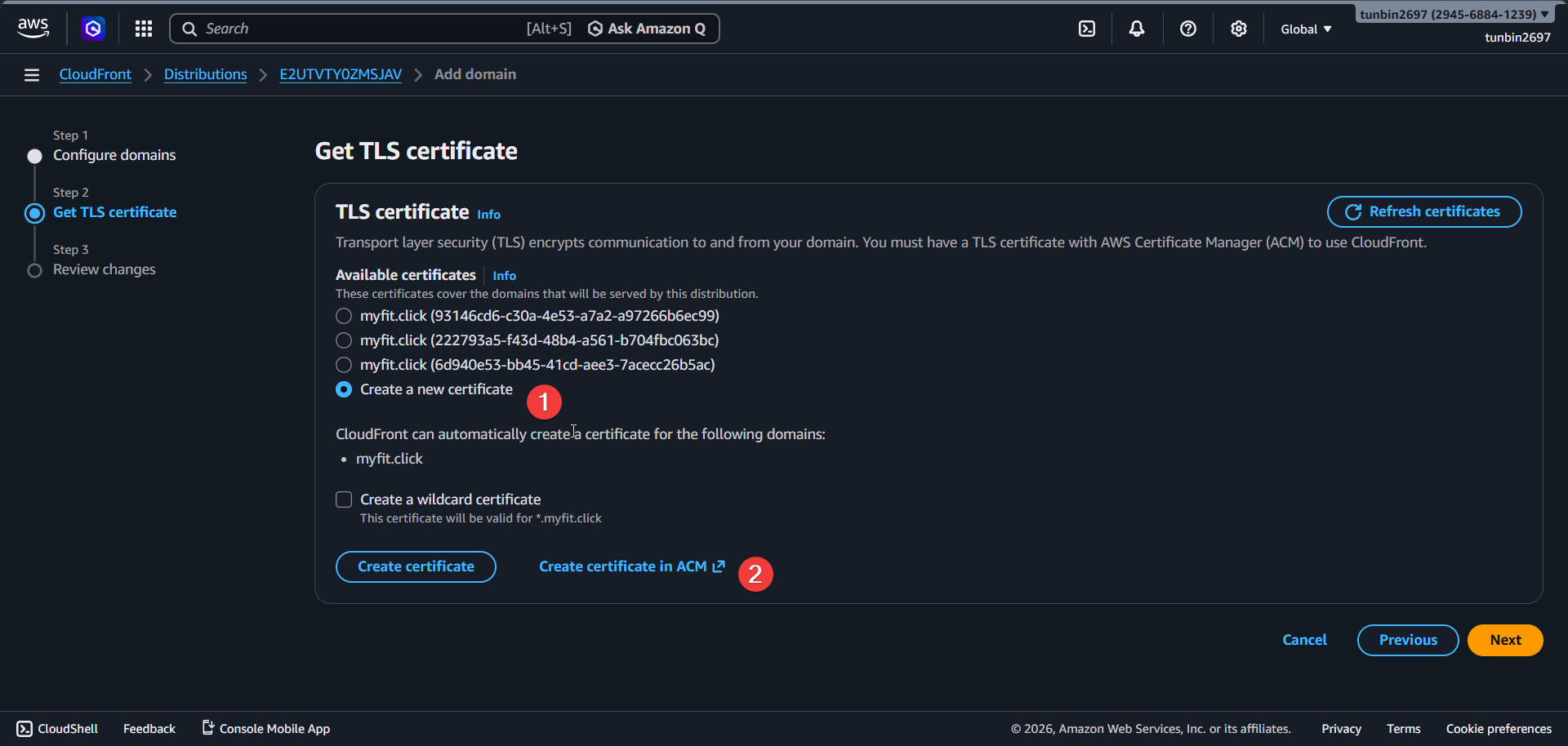
Review domain and TLS certificate values.
Click
Add domains.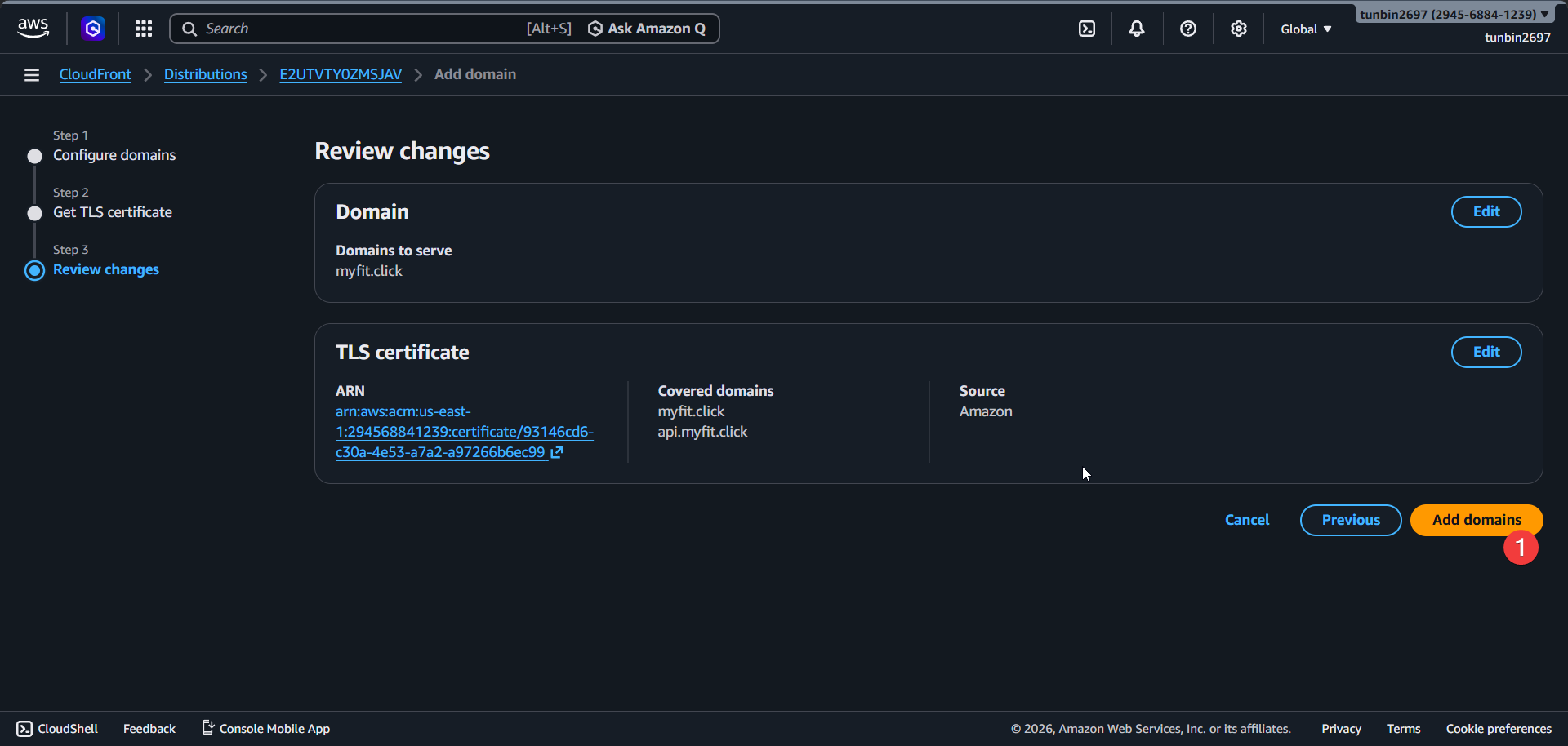
5. Configure default root object
Open distribution settings and click
Edit.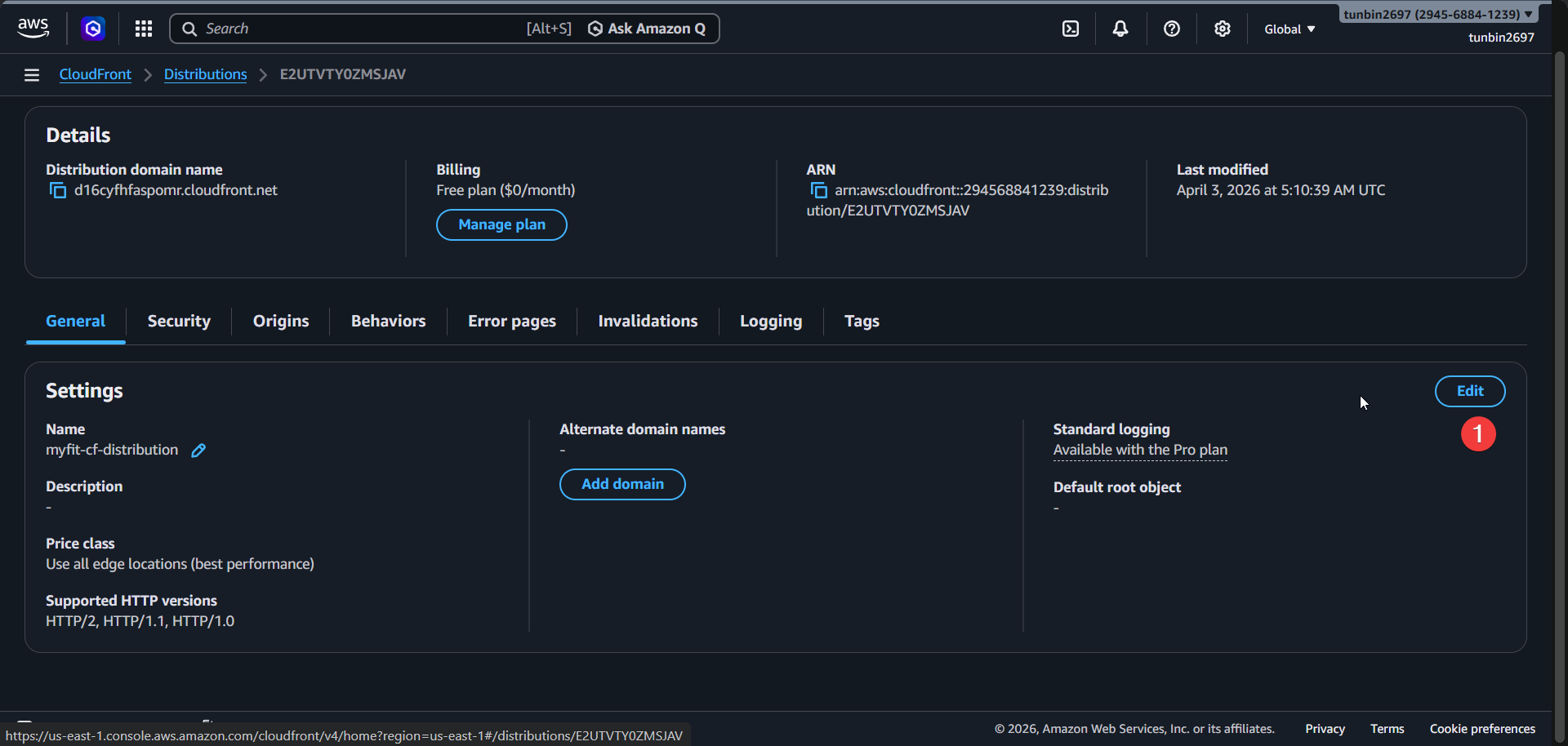
Enter
Default root objectasindex.html.Save changes.
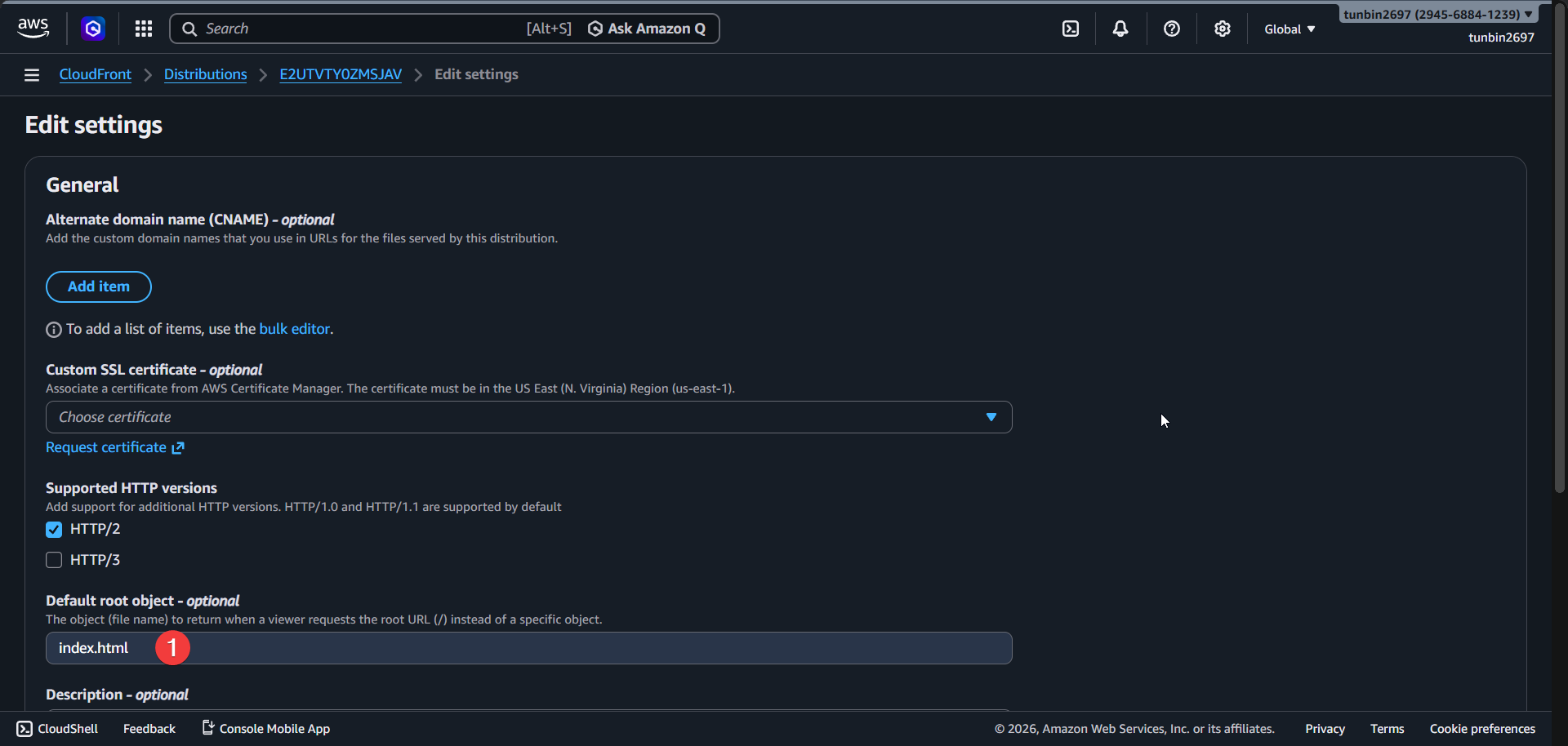
6. Add ALB origin for backend API
Open
Originstab.Click
Create origin.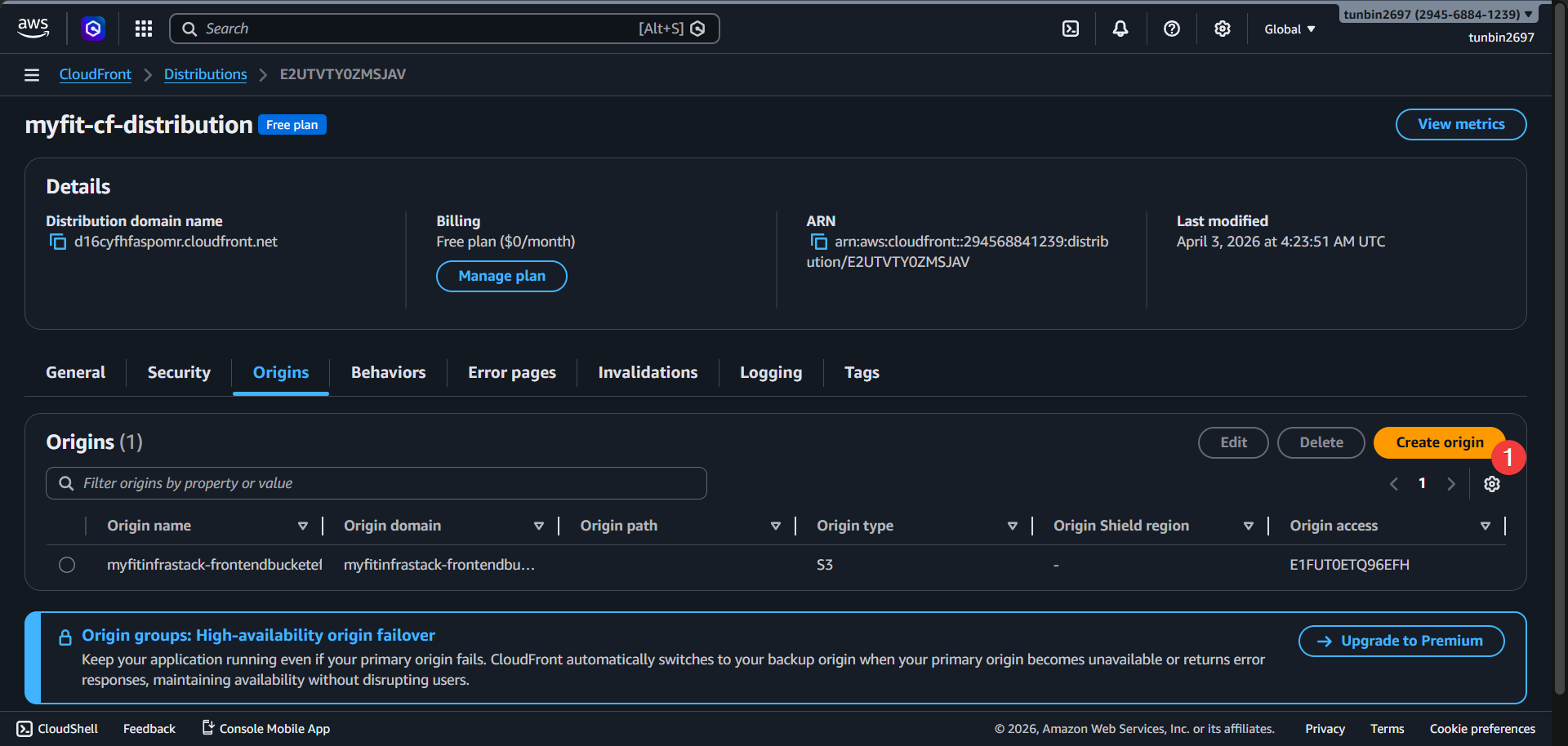
Enter
Origin domainas<your-alb-dns-name>.Select
Protocol:HTTP only.Enter
Nameas<your-backend-origin-name>.Click
Create origin.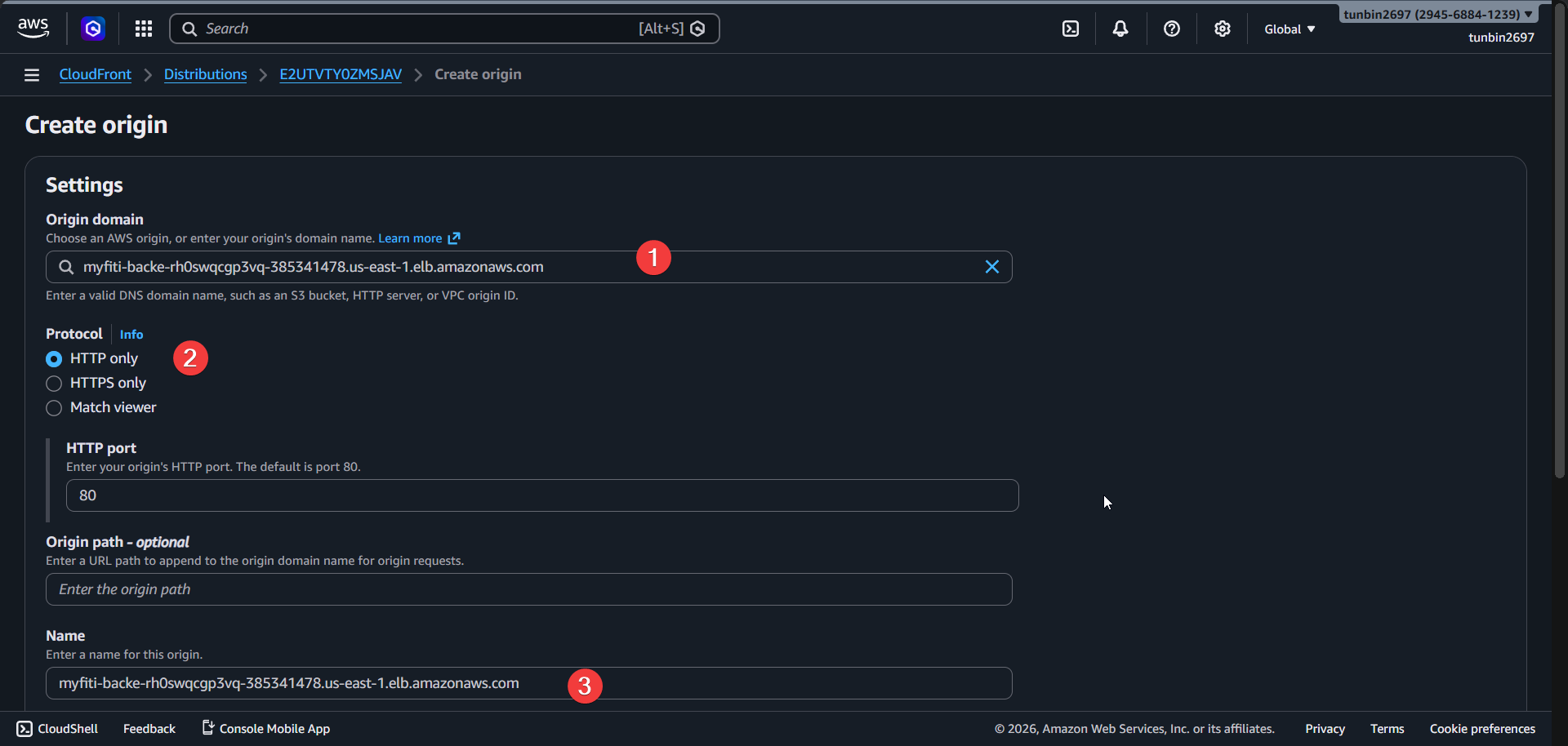
7. Add behaviors for API routes
Open
Behaviorstab.Click
Create behavior.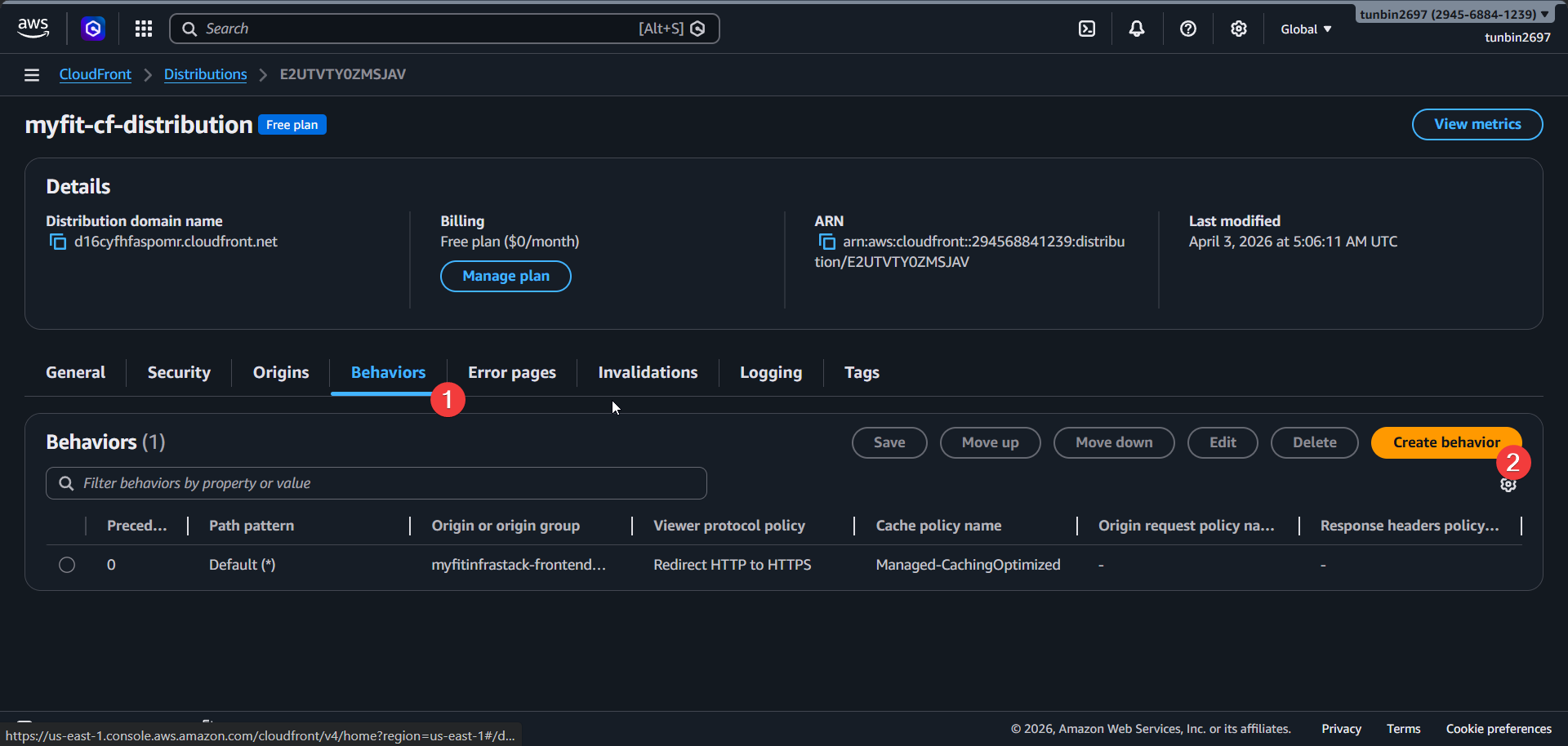
Enter
Path pattern:/api/*.Select
Origin:<your-backend-origin>.Select
Compress objects automatically:Yes.Select
Viewer protocol policy:Redirect HTTP to HTTPS.Select
Allowed HTTP methods:GET, HEAD, OPTIONS, PUT, POST, PATCH, DELETE.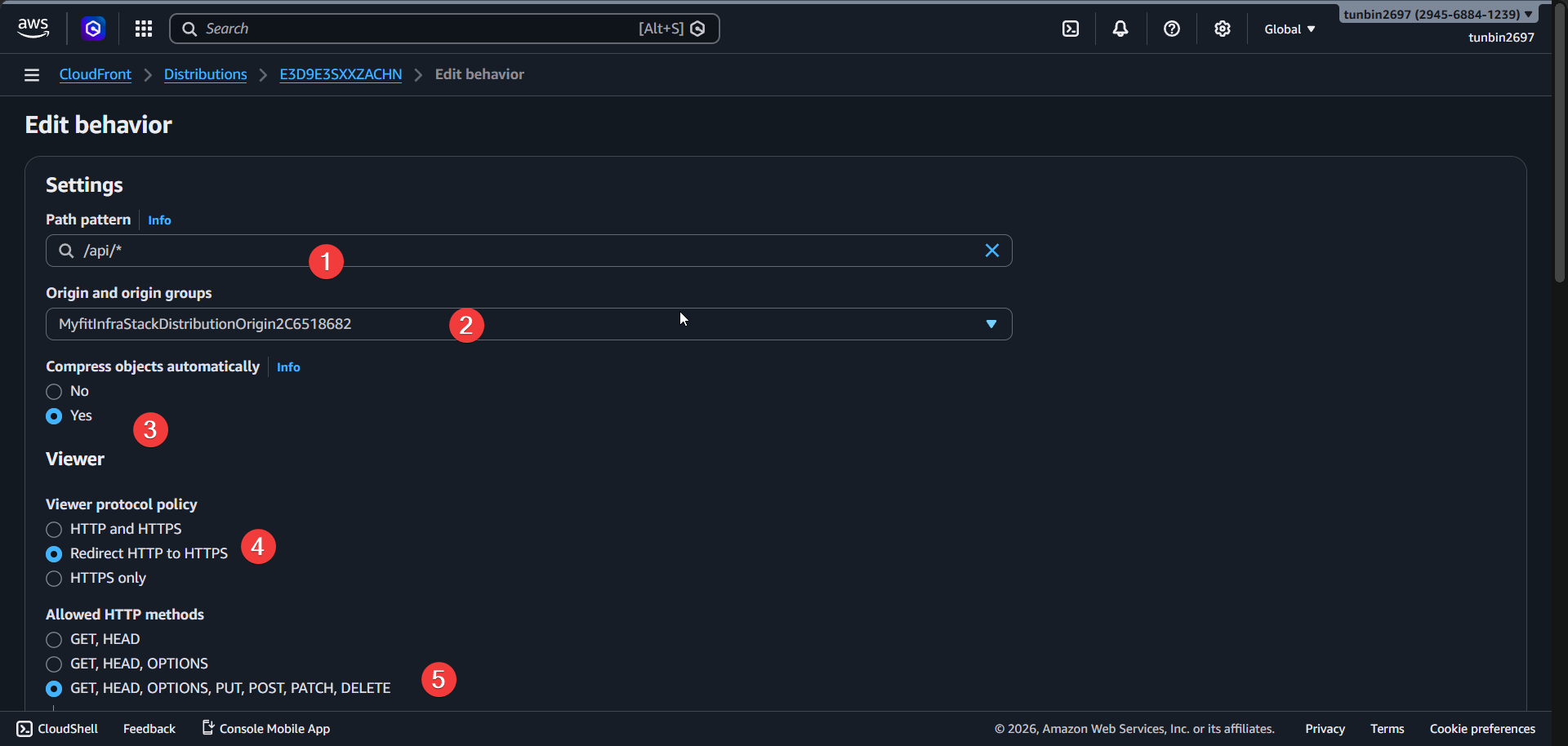
Select
Cache policy:Managed-CachingDisabled.Select
Origin request policy:Managed-AllViewer.Save behavior.
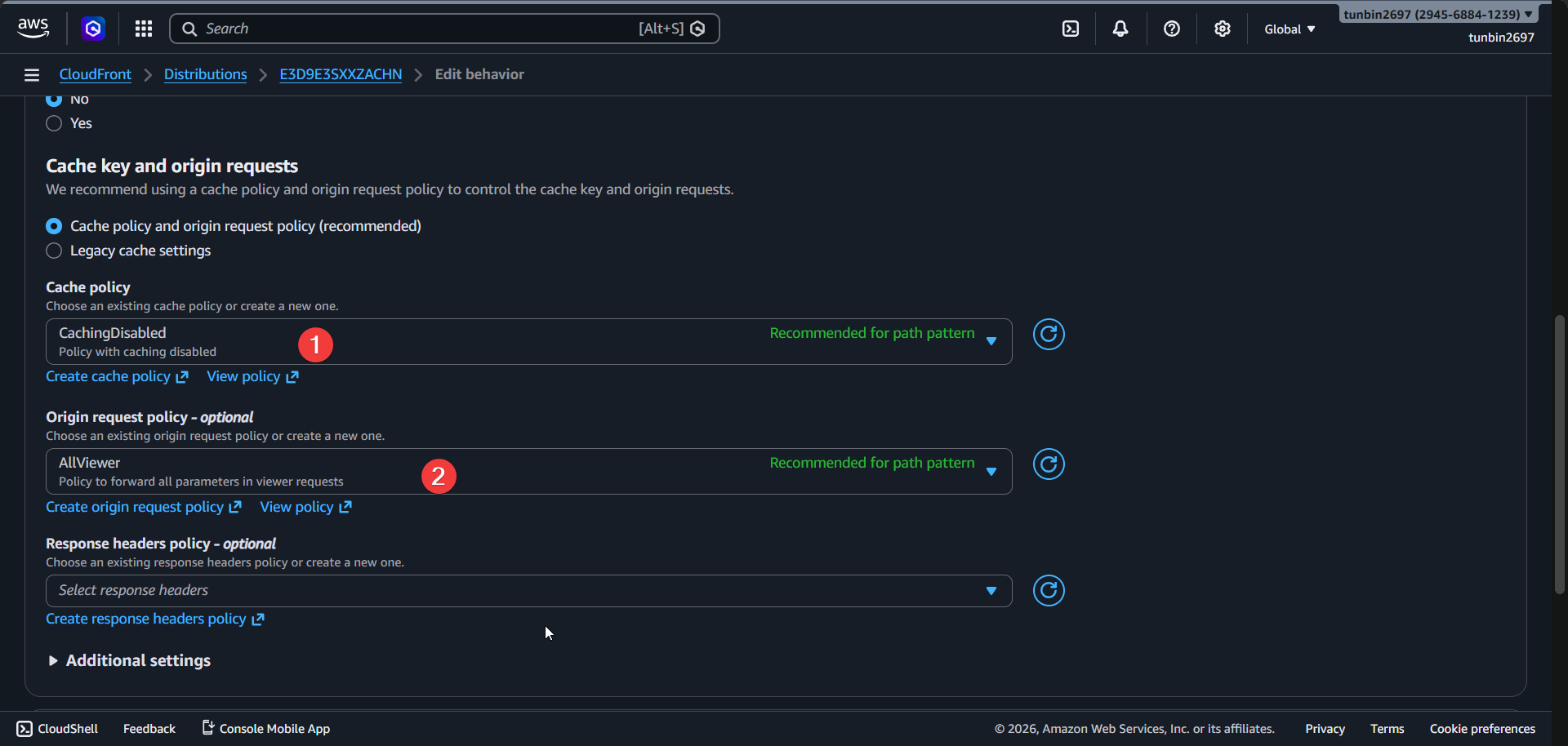
Repeat the same behavior configuration for
/auth/*,/user/*, and/test/*.Verify all API behaviors point to backend origin and default
(*)points to S3 origin.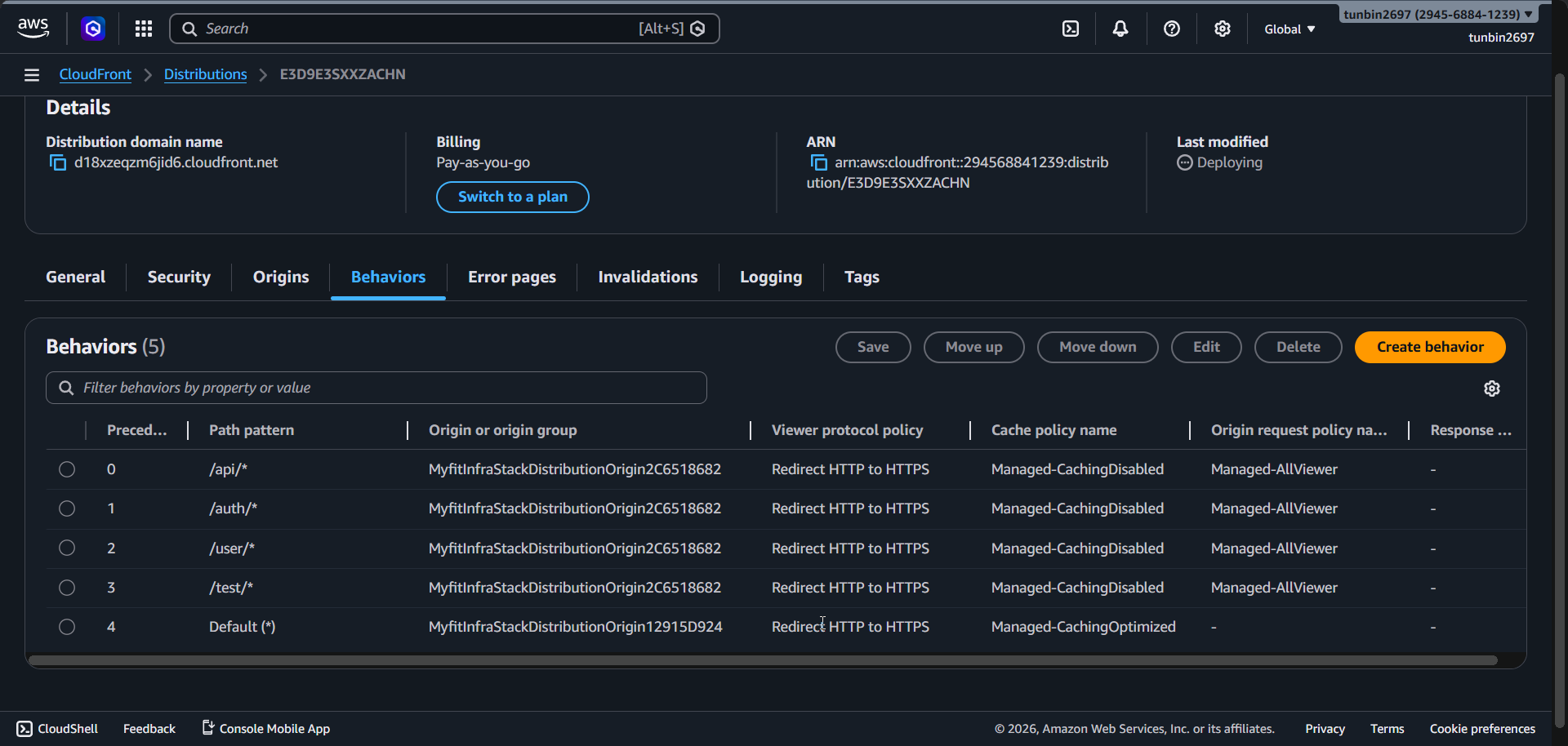
8. Phase completion checklist
- Confirm frontend S3 bucket exists and frontend build files are uploaded.
- Confirm CloudFront distribution status is
Deployed. - Confirm alternate domain name is attached and TLS certificate status is
Issued. - Confirm default root object is
index.html. - Confirm ALB origin protocol policy is
HTTP only. - Confirm API behaviors
/api/*,/auth/*,/user/*,/test/*useManaged-CachingDisabledandManaged-AllViewer. - Confirm ECS task definition still exposes container
webon port8080. - Run AWS CLI command below and verify
CORS_ALLOWED_ORIGINSincludeshttps://<your-domain>.